
Appearance
Themes
A theme sets how your documents look — fonts, sizes, colours, spacing, how quotes, code and tables are drawn — and can recolour the window around them. The same theme applies when you export to HTML, PDF, an image or Word.
Choosing a theme
Open Settings ▸ View, or choose Change Theme… in the command palette to preview themes on your document:
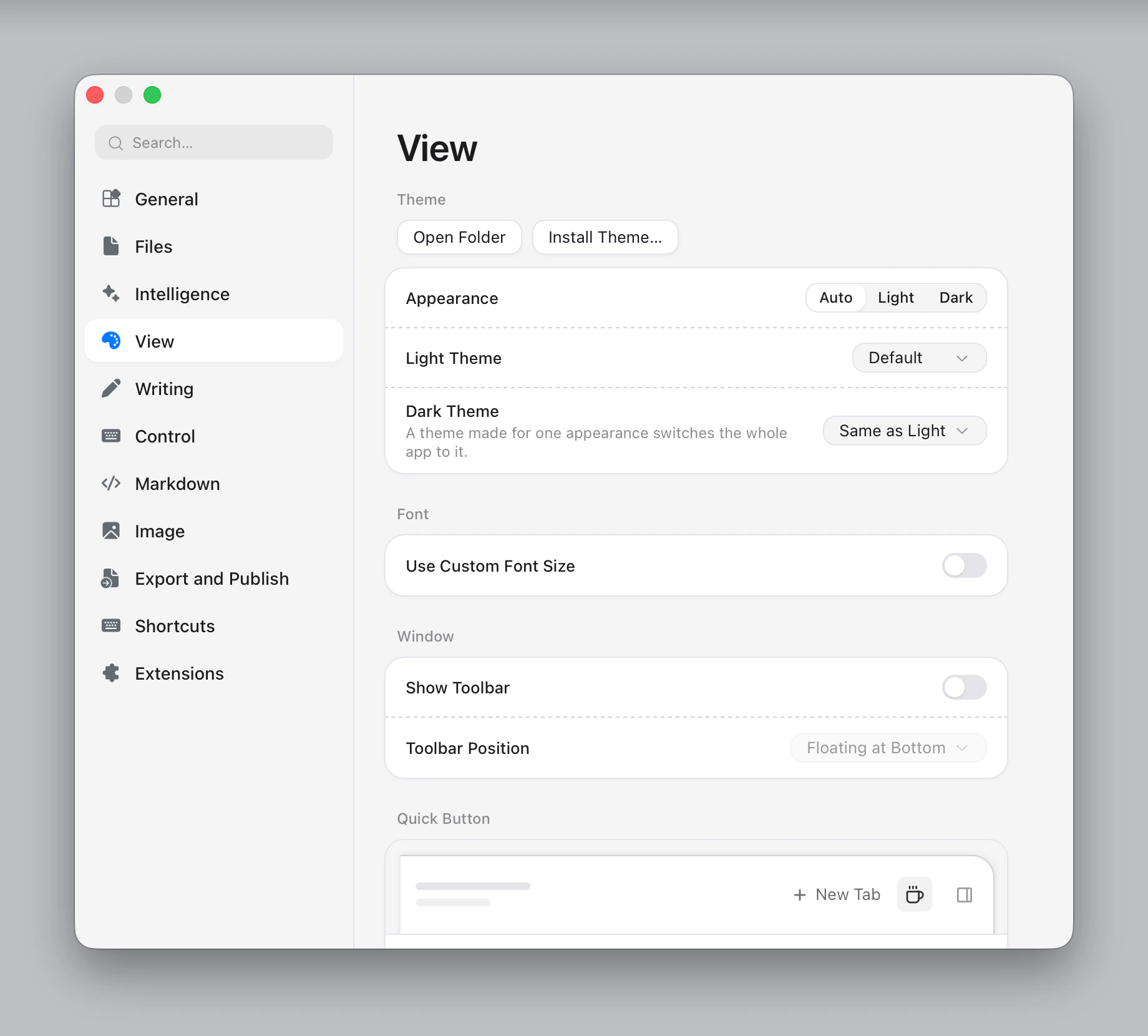
- Appearance — Auto, Light or Dark. Auto follows your computer's setting and switches as soon as it changes (for example with macOS's Auto appearance at sunset).
- Light Theme — the theme used in light mode.
- Dark Theme — the theme used in dark mode. Same as Light keeps one theme for both.
The Themes menu switches the theme for the mode you are in.
Every theme has a colour scheme. An auto theme (like Default) has light and dark versions and follows the appearance. A light or dark theme is made for one scheme only, and choosing it switches the whole app to it: pick Night and Typora turns dark even when your computer is in light mode, title bar and menus included.
Built-in themes
| Theme | Colour scheme | Look |
|---|---|---|
| Default | Auto (light and dark) | The system font, soft surfaces, one blue accent |
| GitHub | Light | GitHub's README style: Open Sans, ruled headings, grey quote bars |
| Gothic | Light | TeX Gyre Adventor, upper-case centred headings |
| Newsprint | Light | A newspaper column: PT Serif on warm newsprint, italic quotes |
| Night | Dark | A slate page with light grey text and its own code colours |
| Pastel | Light | Lavender, rose and peach window background with white rounded editor and inspector cards |
| Pixyll | Light | Large, airy Merriweather prose under bold Lato headings |
| Whitey | Light | A book page: justified Palatino, centred headings |
Installing a theme
A theme comes as a .typora-theme file (a zip of the theme's folder).
- Open Settings ▸ View.
- Click Install Theme… and choose the
.typora-themefile — or a theme folder.
Typora copies it into your Themes folder and switches to it. You can also open a .typora-theme file directly (double-click it, or typora open solar.typora-theme): Typora opens Settings ▸ View and asks before installing it.
Extensions can ship themes too; once the extension is installed its themes appear in the list.
Themes from Typora 1
Typora 1 themes, the .css files on theme.typora.io, don't work here: copying one into the Themes folder does nothing. To use one, give its link to the chat and ask for it to be installed. The chat rewrites it as a theme.toml theme, installs it as an extension once you agree, and tells you what didn't carry over, such as web fonts or styling for Typora 1's own window. Let the chat act in Typora has to be on.
The Themes folder
Open Folder in Settings ▸ View shows the folder. Each theme is a folder inside it:
Themes/
  solar/
    theme.toml
    theme.css        (optional)
    fonts/…          (optional)
  user.css           (optional, see below)
Typora picks up changes when you switch back to it, so you can edit a theme in another editor and see the result.
| Platform | Themes folder |
|---|---|
| macOS | ~/.config/Typora/Themes |
| Windows | %USERPROFILE%\.config\Typora\Themes |
| Linux | ~/.config/Typora/Themes |
Tweaking with user.css
Themes/user.css is applied on top of every theme. Use it for small changes you want whatever theme you pick, for example a narrower page:
css
:root {
  --ty-content-width: 680px;
}
The variables you can set are listed in Writing Themes. Like theme CSS, user.css cannot load files from the internet (@import and remote url()s are ignored).
Exporting
- HTML and PDF use the theme as you see it. Its fonts and images are embedded in the HTML file, so it looks the same on other computers.
- Word (.docx) gets the theme's fonts, sizes, colours, spacing, heading rules, quote bars and table borders as Word styles. Details Word cannot express — rounded corners, icons — are left out. If the export profile names its own Reference Doc, that file is used instead.
- HTML (without styles) ignores the theme.
Making your own
A theme is a short theme.toml. The simplest one only sets a few variables:
toml
name = "Solar"
color-scheme = "light"

[vars]
body-font = "Georgia, serif"
bg = "#fdf6e3"
text = "#586e75"
accent = "#b58900"
Put it in Themes/solar/theme.toml and choose Solar in Settings. Writing Themes covers everything a theme can set.