
Appearance
Getting Started
Typora is a Markdown editor that shows your document the way it will be read. You type Markdown — # , **bold**, - [ ] task — and it turns into a heading, bold text or a checkbox as you write. The file on disk stays plain Markdown.
Typora runs on macOS, Windows and Linux. Get it from v2.typora.io.
The window
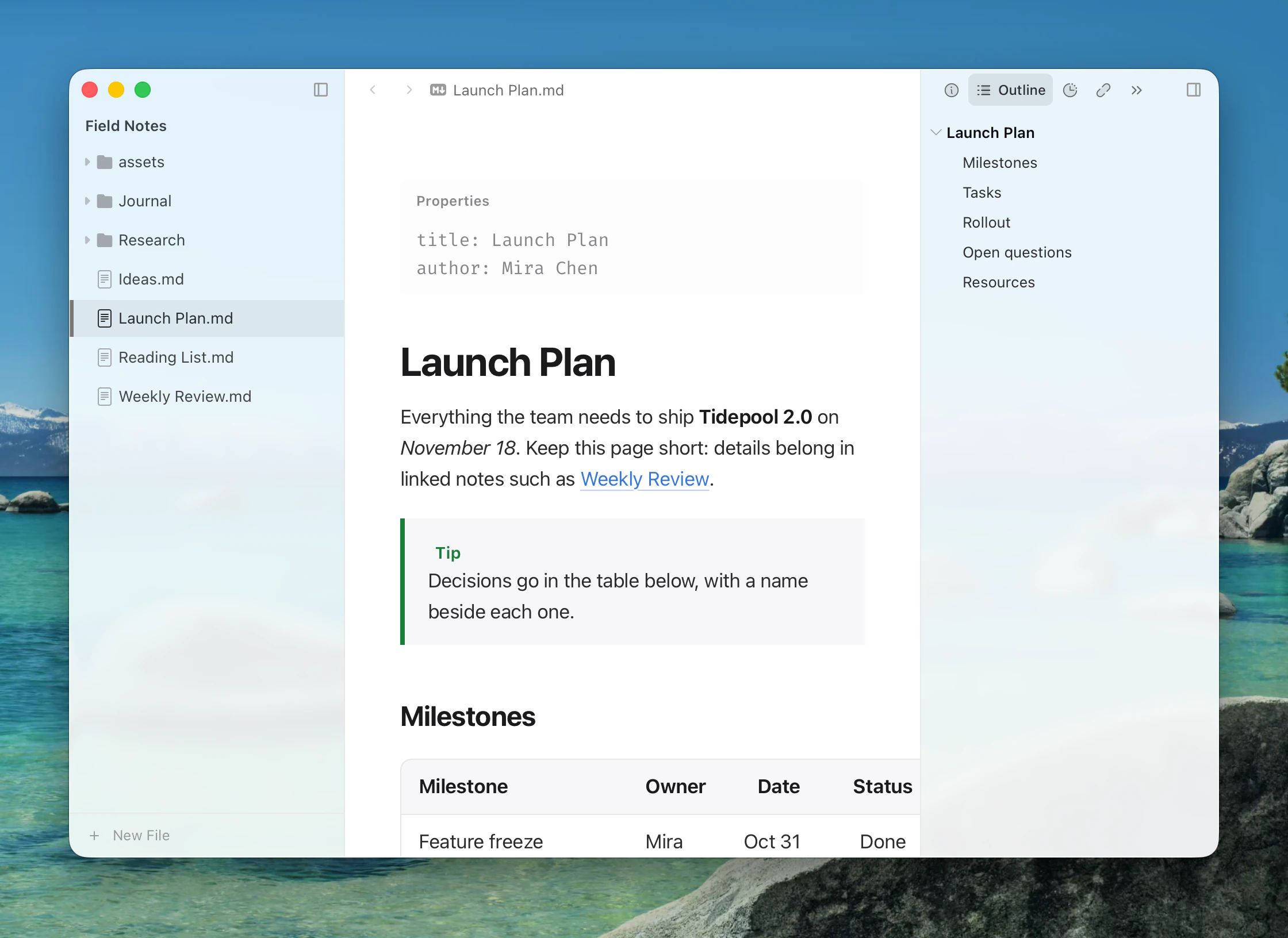
| Area | What it holds | Toggle |
|---|---|---|
| Editor | Your document, rendered as you type. | — |
| Sidebar (left) | The folder you opened, as a file tree, and workspace search. | Mod+Shift+L |
| Detail panel (right) | Tabs for the current document: Info, Outline, History, Attachment, References, Spelling, Chat, and tabs added by extensions. | View menu |
| Tabs | Several documents in one window, side by side if you like. See Tabs and Split View. | — |
Mod means ⌘ on macOS and Ctrl on Windows and Linux.
Getting around
| To | Use |
|---|---|
| Run any command | Command palette, Mod+Shift+P |
| Open a file by name | Open Quickly — ⌘ShiftO on macOS, Ctrl+P elsewhere |
| Insert a block (table, math, code, front matter…) | Slash commands: type / in the editor |
| Insert a snippet | Type / and the snippet's prefix |
| See the Markdown source | Source Code Mode, Mod+/ |
| Search across files | Mod+Shift+F |
| See the outline | Detail panel ▸ Outline, Mod+Shift+1 |
| Open Settings | Mod+, |
| Ask about your document | Chat in the detail panel |
Your first document
- Start typing in the empty document. Type
#and a title to make a heading. - Type
/to insert a table, a math block, a code block or a diagram. - Save with Mod+S. On macOS, Auto Save is on by default; on Windows and Linux you can turn it on in Settings ▸ Files.
To work with many notes, open a folder: File ▸ Open Folder… or the button in the empty sidebar. See Files and Folders.
Writing modes
Typora can show the raw Markdown (Source Code Mode, Mod+/), dim everything but the current paragraph (Focus Mode, F8), keep your line in the middle of the window (Typewriter Mode, F9), or clear the window (Zen Mode, Mod+Shift+Enter). See Writing Modes.
Where Typora keeps your things
Settings, templates, snippets and extensions live in one folder, ~/.config/Typora/:
~/.config/Typora/
  settings.toml     your settings
  Templates/        document templates
  Snippets/         snippets
  Extensions/       installed extensions
On Windows ~ is your user folder (%USERPROFILE%). In a sandboxed macOS build the folder is inside the app's container. The Open Folder buttons in Settings (Templates, Snippets, Extensions) always take you to the right place.
Next
- Writing Markdown — every syntax Typora understands.
- Editing — select, move and rearrange what you've written.
- Templates and Snippets — stop retyping the same structure.
- AI — connect a model and chat about your document.
- Extensions — add diagram languages, views and tools.