
Appearance
Publish
Typora publishes in two ways: Commit and Push sends a Git repository to its remote, with nothing to install, and publishing extensions post Markdown to a blog.
Commit and Push
If your document is in a Git repository, you can commit and push from Typora. On macOS, choose File ▸ Publish ▸ Commit and Push…. On every platform it's Commit and Push in the command palette. You need Git installed, and the document must be saved to disk; unsaved changes are saved first.
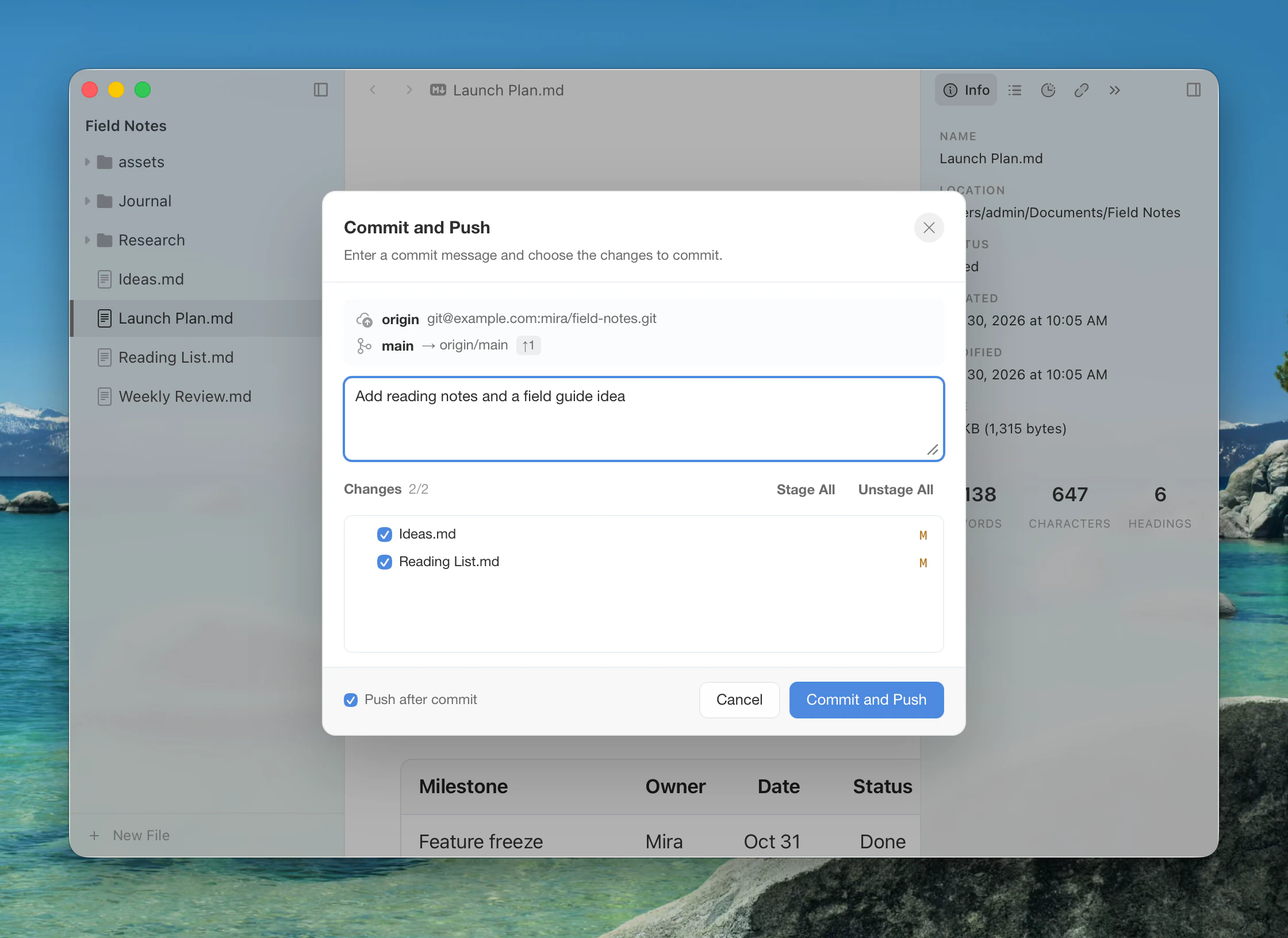
The dialog shows the remote, branch and how far it is ahead of or behind its upstream, then every change in the repository, not only this document. Tick what to commit and enter a message. Push after commit is on by default. The main button reads Commit and Push, Commit or Push to match. Mod+Enter runs it.
Only the files you ticked are committed. If the commit works but the push fails, the dialog stays open with the error so you can try again. Typora can't answer credential prompts, so your remote must work without one, as with an SSH key or a credential helper. A branch with no upstream is pushed with -u.
Publishing to a blog
Install a publishing extension from Settings ▸ Extensions, configure its blog URL, and enter your sign-in in the same options. Mataroa, Write.as / WriteFreely, Pika and WordPress are separate extensions. Look for the Publish tag. Export remains a separate tag for file conversion.
What is kept. Saving the options checks your sign-in with the service, so a mistake shows up in the form.
| Extension | You enter | Kept on this computer |
|---|---|---|
| Write.as / WriteFreely | Password | Only the access token it returns. The password is discarded. |
| Mataroa | API key | The key. |
| Pika | App token | The token. |
| WordPress | Application Password, which is not your login password | That password. |
It is encrypted by your system: in the Keychain on macOS, for your account on Windows, in the desktop keyring on Linux. It never goes into your documents or Typora's settings, and it is sent only to that service. The extension's Sign Out command deletes it from this computer. All of these can be revoked at the service. Because it stays with your system, signing in again is needed on a new computer, even if you copy your Typora profile.
On Linux without a keyring, Typora can't encrypt anything. Saving asks whether to install one first or go on with a fixed key that offers almost no protection, and the options then keep showing that warning. To fix it, install gnome-keyring (or KWallet on KDE), log out and back in, and enter your sign-in again.
On macOS, sites you add also appear in File ▸ Publish.
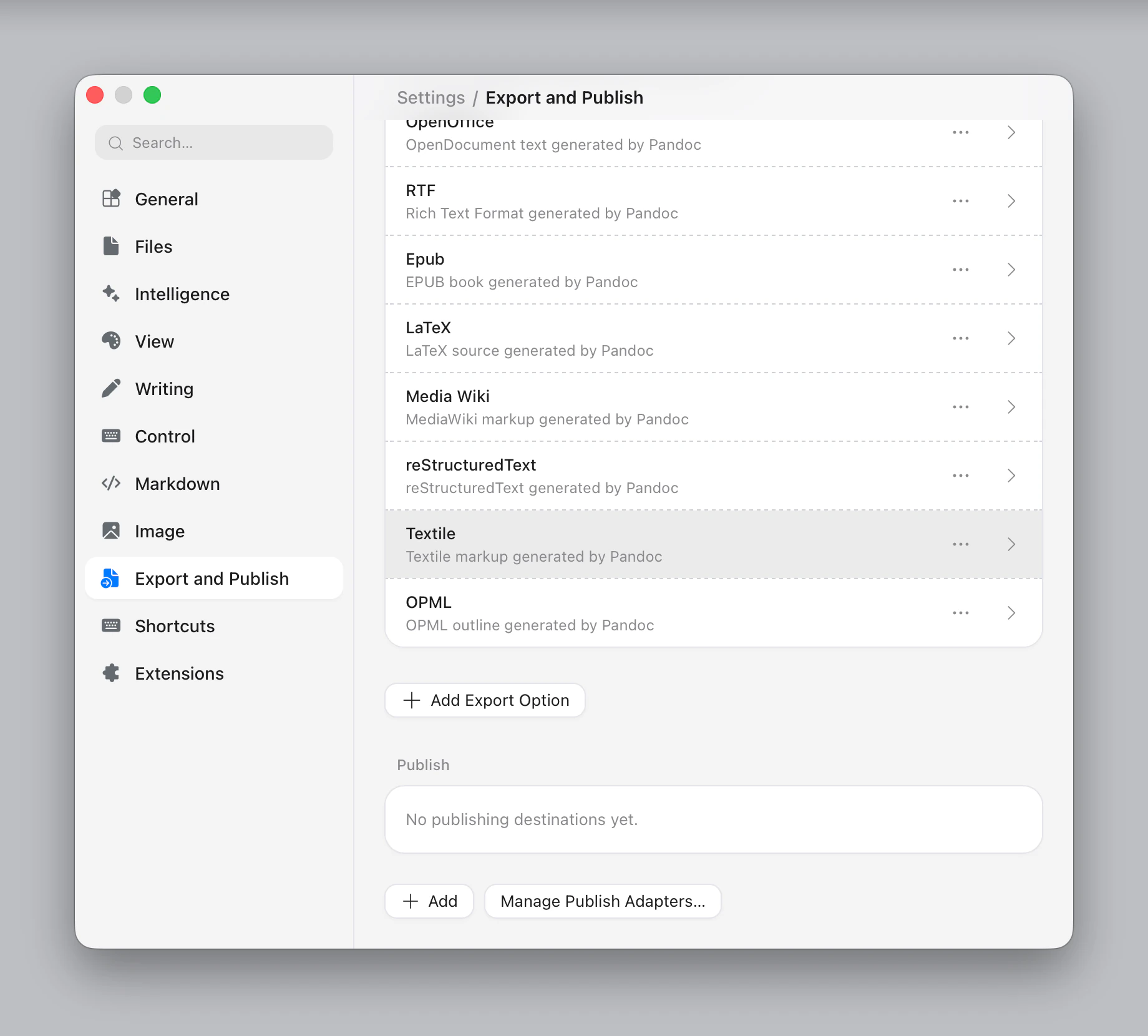
Open Settings ▸ Export and Publish. The upper group configures export formats. In the lower Publish group, Add a site, adapter and local folder. Manage Publish Adapters… opens publishing extensions. Each card shows the site and corresponding local folder; click it to edit the binding.
With exactly one matching folder destination, use typora publish .. Alternatively specify an adapter explicitly for a saved directory:
sh
typora publish ./posts --to typora.mataroa:mataroa --dry-run
typora publish ./posts --to typora.mataroa:mataroa
typora publish status ./posts --to typora.mataroa:mataroa --refresh --comments --json
The CLI currently needs a running Typora. Folder inputs are recursive. New files create articles; changed content or local image bytes update the existing article; unchanged files are skipped. Hidden files, node_modules and child symlinks are skipped. Local deletions do not delete online articles. Save open files before publishing from the CLI.
Use --draft or top-level status: draft front matter when supported (Mataroa, Pika, WordPress). Write.as publishes into a configured blog collection and does not support remote drafts in this adapter. WordPress creates drafts by default, following its extension setting.
typora publish status distinguishes local changes from remote publication state. Add --refresh to read the platform. --metrics and --comments request optional platform data; unavailable features are reported as unsupported. typora status continues to list open editor documents.
Records live in your Typora profile. Back up ExtensionData to preserve remote associations. Add a unique top-level publish_id to front matter before first publication if you want identity to survive file moves. Without one, moving a file requires explicitly binding it to its previous article:
sh
typora publish moved.md --to typora.mataroa:mataroa --bind remote-post-slugBinding only changes the local association. It does not modify the article. It is also the recovery path after an interrupted write whose outcome has been checked at the platform. The CLI refuses automatic retries of uncertain writes, remote conflicts and remotely deleted articles.
See Publish adapters to contribute a new platform extension or consume publication data in a detail view.