
Appearance
Settings
Open Settings with Mod+, (the menu item is Preferences…). The search box at the top of the sidebar finds any setting by its name or description — try zen, pandoc or hotkey.
Settings are stored in one file, ~/.config/Typora/settings.toml, and apply to every open window immediately. To edit the file by hand, quit Typora first: it reads the file once at launch and rewrites it whole, so changes made while it runs are lost. A value of the wrong type falls back to its default rather than breaking anything.
General
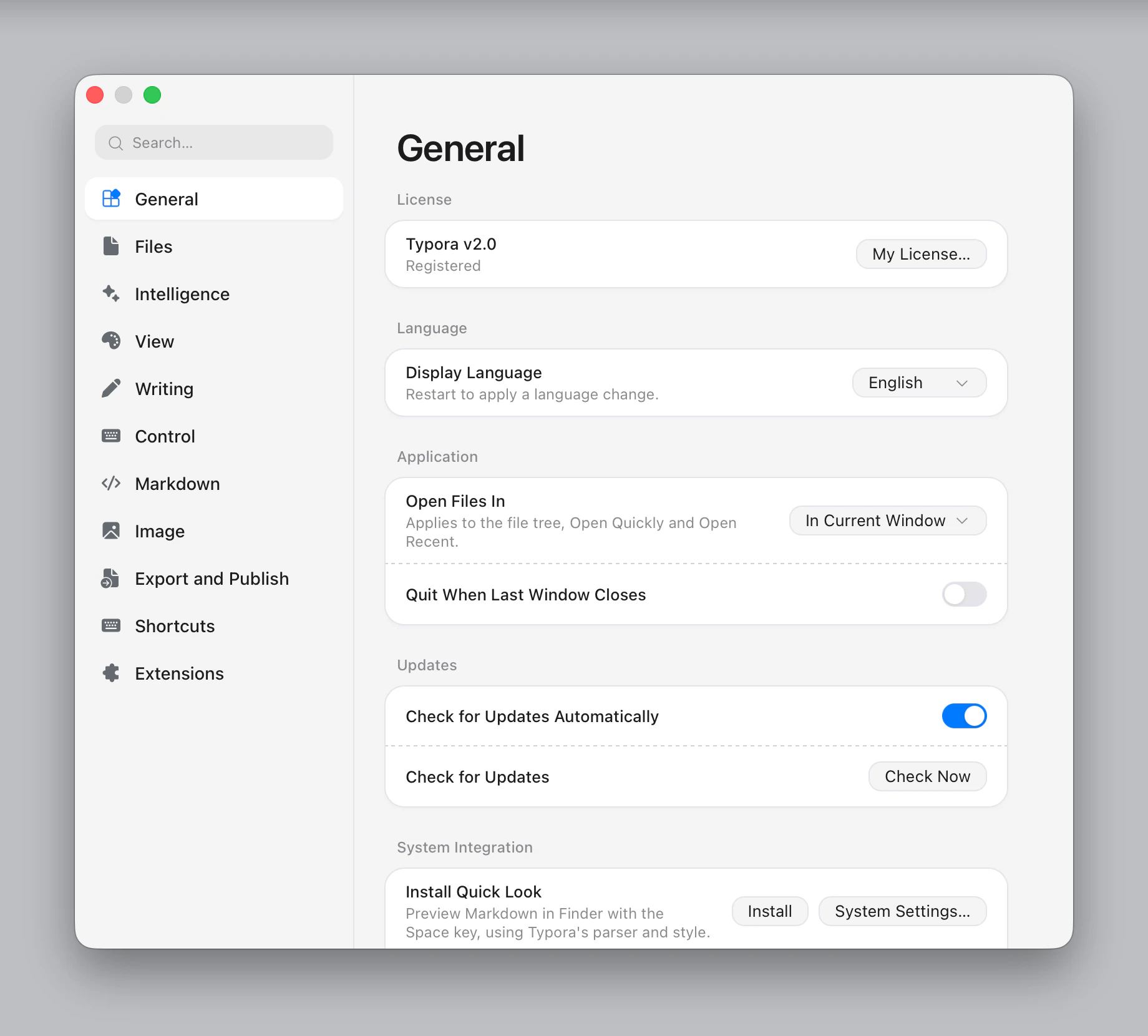
License shows whether this copy is registered, with Register… or My License…. See License and Activation.
| Setting | Options (default first) |
|---|---|
| Display Language | System Language, English, 简体中文, 繁體中文 and the languages of the store's language packs (Deutsch, Français, 日本語, …). Choosing a language whose pack is not installed offers to download it. Restart to apply. |
| Open Files In | Current window, new window, new tab |
| Quit When Last Window Closes | Off |
Updates: Check for Updates Automatically (on) looks for a new version once a day, and Check Now looks right away. When there is one, Download opens its page.
System Integration (macOS): install Quick Look (preview Markdown in Finder with the space bar), the Command Line Tool (typora, see Command Line), and Finder Services (Open in Typora, Import into Typora, New Typora Document with Selection).
System Integration (Windows): install Open in Typora (in File Explorer's right-click menu, for Markdown files and folders) and New Markdown File (under New in the same menu). When no app is registered as the default for .md, New Markdown File also makes Typora the one that opens them, until you uninstall it.
Files
| Setting | Options (default first) |
|---|---|
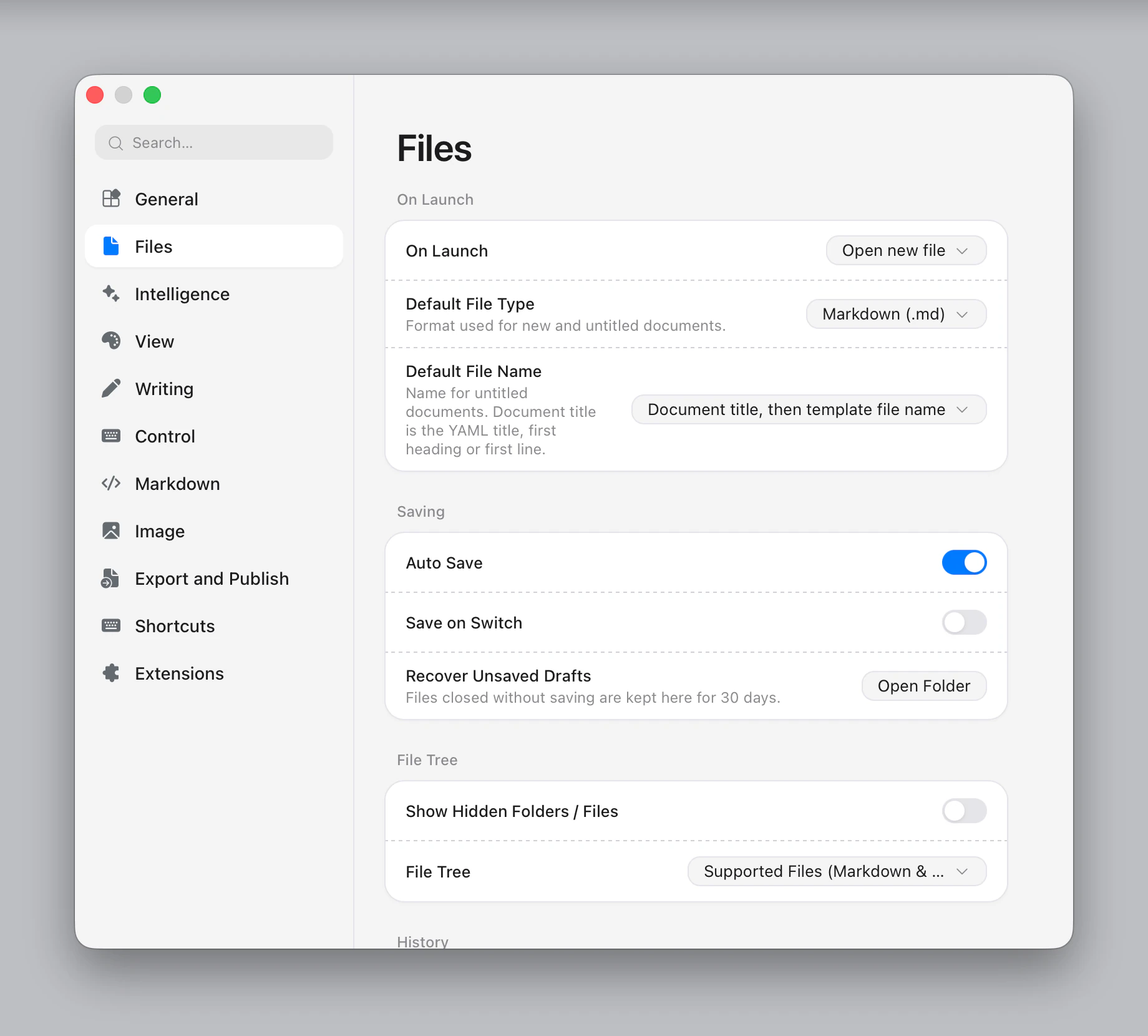
| On Launch | Open new file, restore last folders, restore last files and folders |
| Default File Type | .md, .markdown, .text, .txt |
| Default File Name | Document title then template file name; document title; template file name; template file name then document title; Untitled (macOS: Untitled or system suggestion) |
| Auto Save | On (macOS) / off (Windows, Linux) |
| Save on Switch | Off |
| Recover Unsaved Drafts | Open Folder shows files closed with Don't Save, kept for 30 days. |
| Show Hidden Folders / Files | Off |
| File Tree | Supported files, custom glob patterns, all files |
| Record Recent Files | On |
Favorite Folders & Sync pins folders and connects them to a sync service. See Folder Sync.
Intelligence
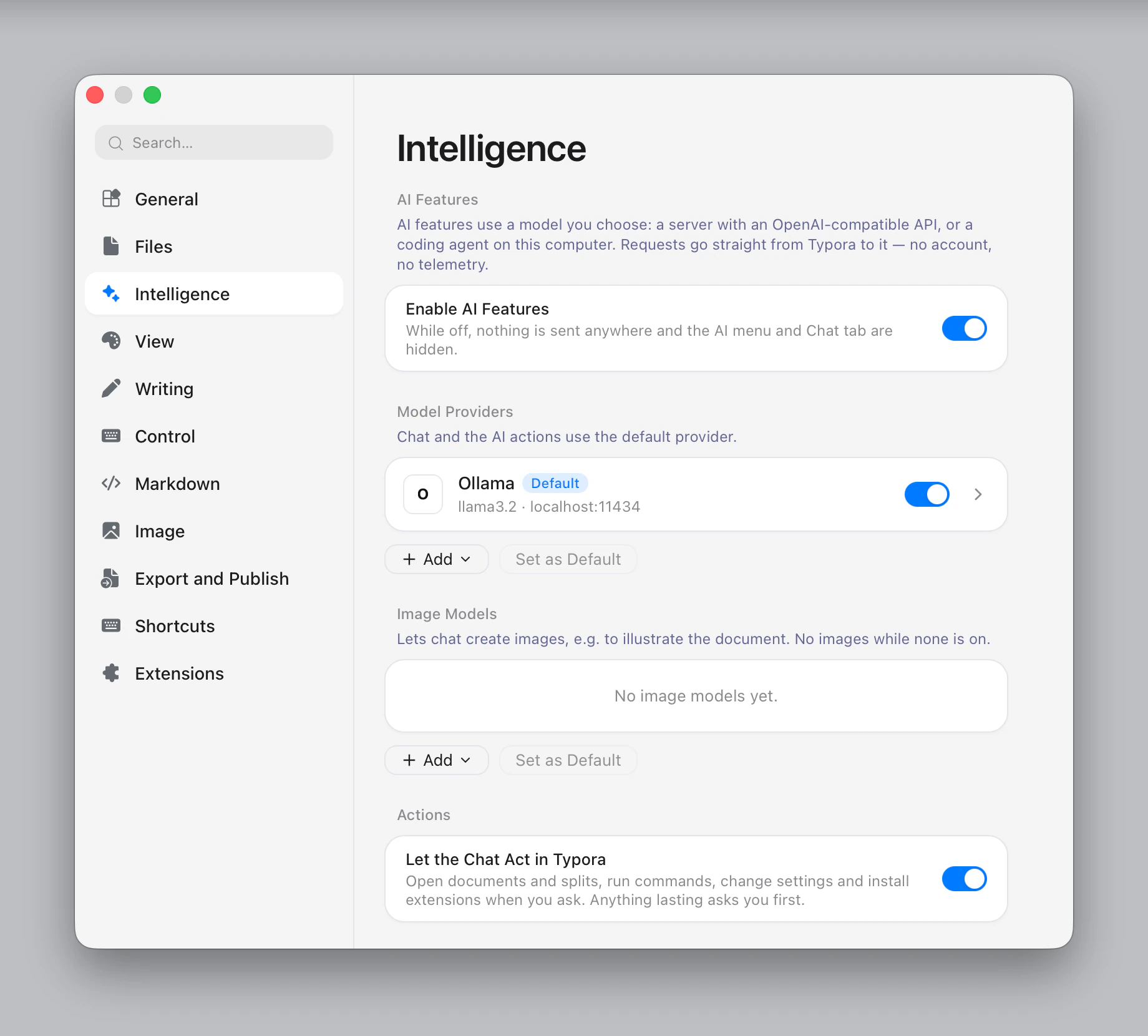
Everything for AI:
- AI Features: Enable AI Features (on). While off, nothing is sent anywhere and the AI menu and Chat tab are hidden.
- Model Providers: servers and coding agents, and which is the default.
- Image Models: models that create images.
- Actions: Let the Chat Act in Typora (on).
- Web Search: the Search Service (Search Engines in a Web Tab).
- Skills: the skills the chat can follow, and Open Folder for your own.
- Defaults: Maximum Context Length (24,000), Custom Instructions, Send Shortcut (Press Enter).
View
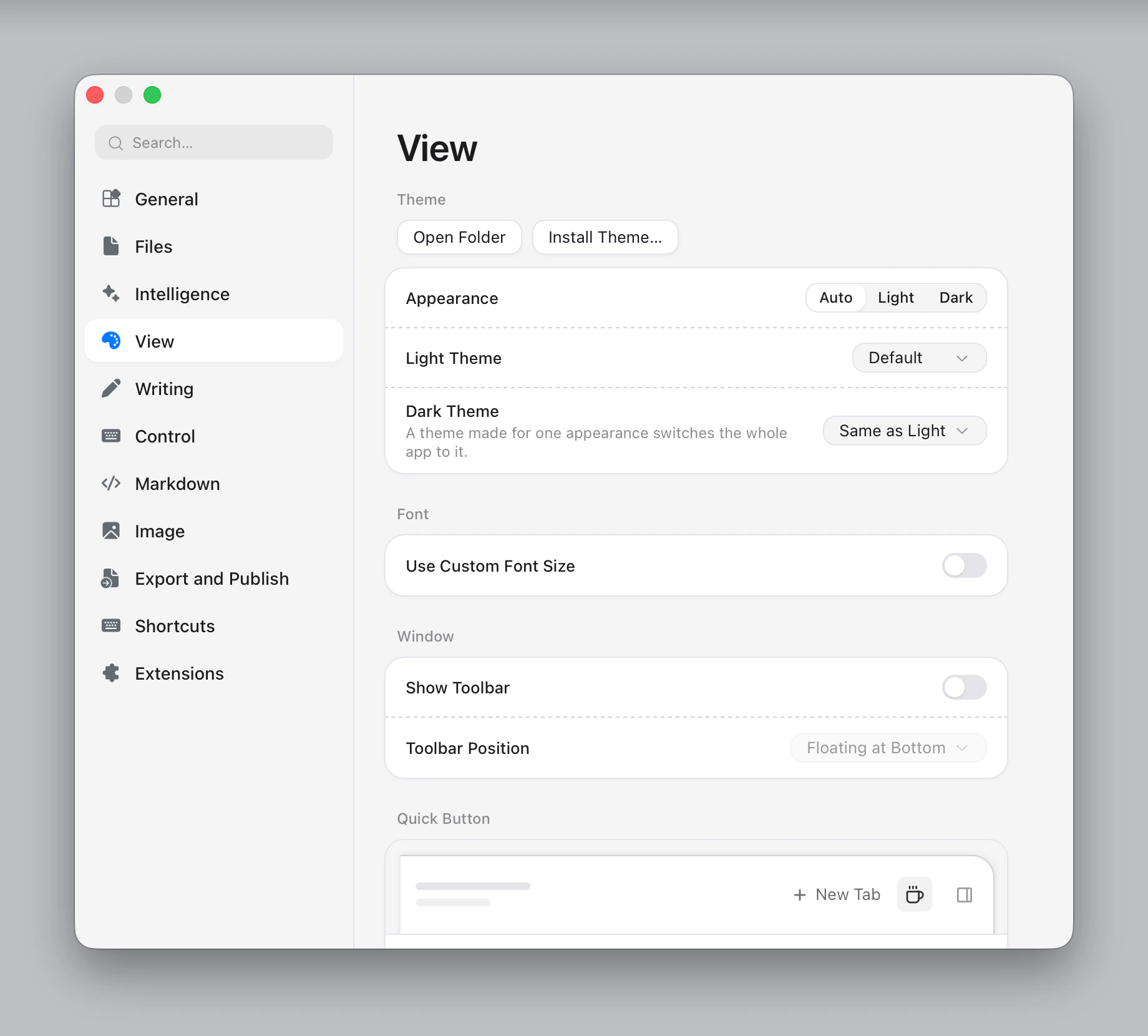
- Theme: Appearance (Auto follows the system as it changes, Light or Dark), Light Theme and Dark Theme (Same as Light by default). A light-only or dark-only theme switches the app to its scheme. Open Folder and Install Theme… are for your own themes. See Themes.
- Font: Use Custom Font Size and Editor Font Size (8–48, default 16).
- Window: Show Toolbar (off) and Toolbar Position (Floating at Bottom, Below Title Bar).
- Quick Button: what the title bar's button does: Zen Mode, Readonly Mode, Source Code Mode or Command Palette.
- Detail Panel: drag tabs to reorder them and turn off the ones you don't use. With more than five, the first four show and the rest go in the » menu. Tabs kept from AI views are removed here.
Writing
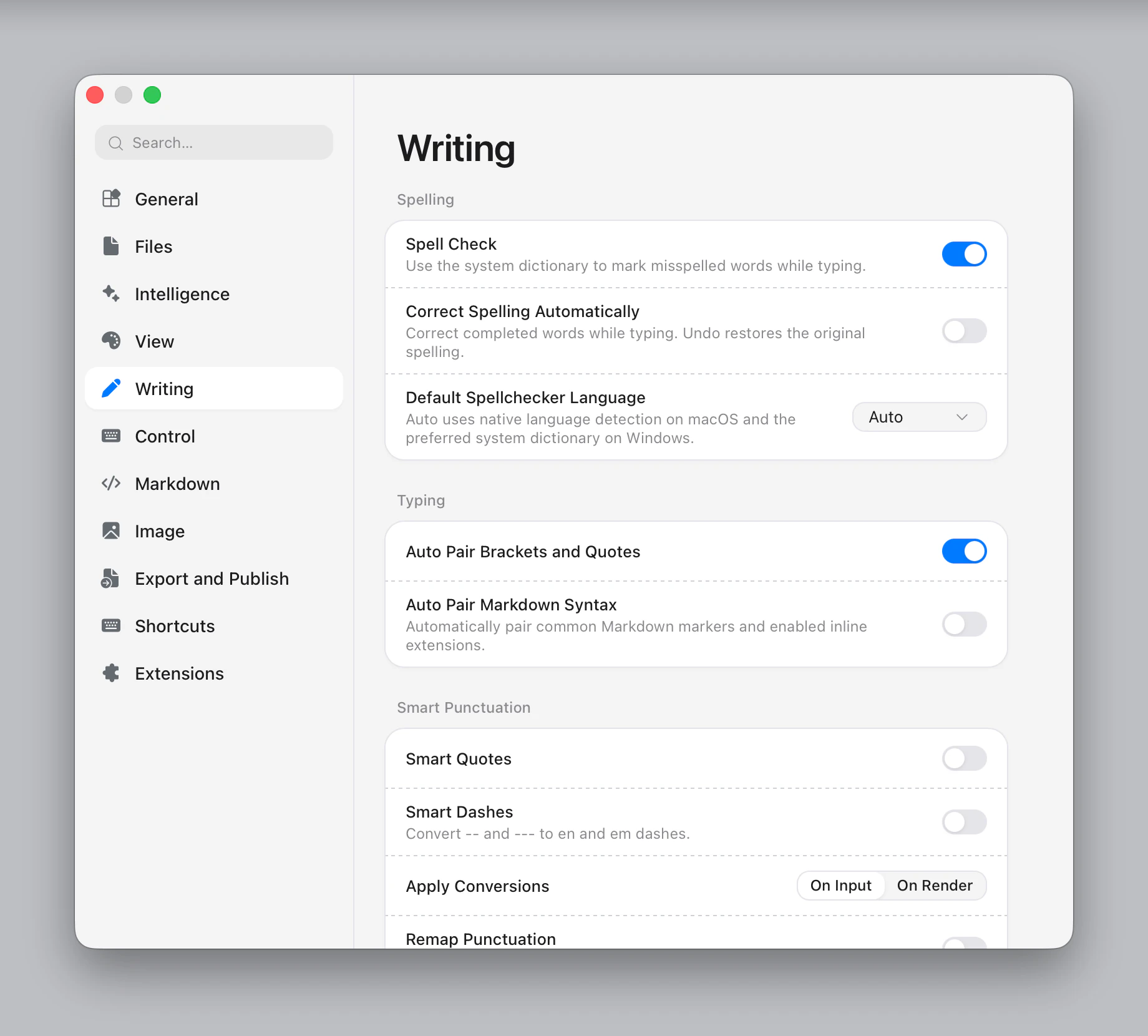
- Spelling: Spell Check (on, using the system dictionary), Correct Spelling Automatically (off), Default Spellchecker Language (auto). Language packs add the languages the system has no dictionary for.
- Typing: Auto Pair Brackets and Quotes (on), Auto Pair Markdown Syntax (off).
- Smart Punctuation: Smart Quotes, Smart Dashes, Apply Conversions (on input or on render), Remap Punctuation for full-width punctuation typed with an input method, and Text Replacement… for more.
- Chinese Typography: shown when your interface or system language is Chinese. See Chinese typography.
- Zen Mode: what Zen Mode does besides hiding the side panels: Hide Titlebar and Hide Toolbar (on), turn on Focus Mode (paragraph or sentence), Typewriter Mode or Flow Mode, Enter Full Screen.
- Typewriter Mode: Also Turn On Focus Mode (off, paragraph or sentence), switched off again with Typewriter Mode.
- Focus Mode: Also Turn On Typewriter Mode (off), switched off again with Focus Mode.
- Flow Mode: Turn Off Spell Check (on).
Control
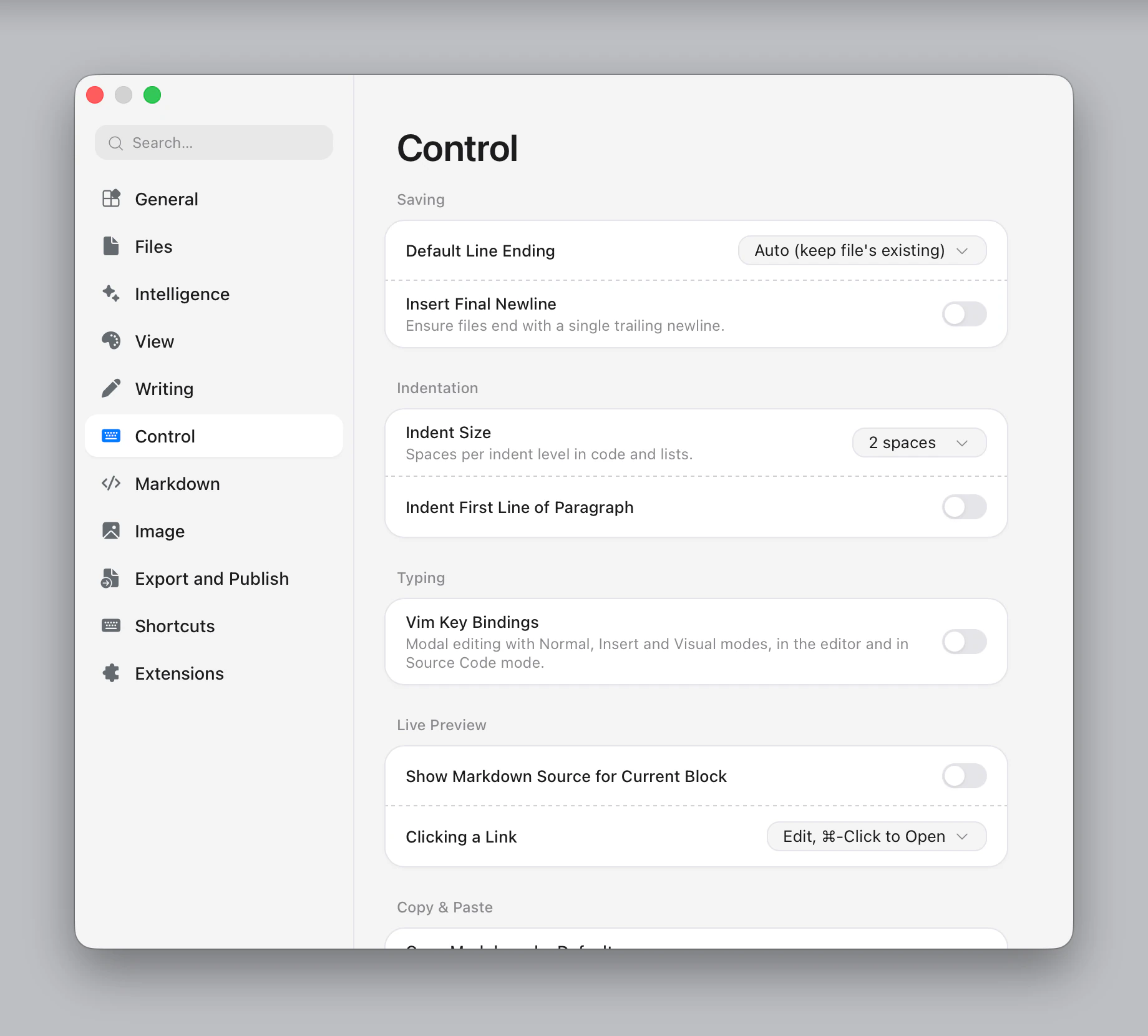
- Saving: Default Line Ending (keep the file's own, LF, CRLF) and Insert Final Newline (off).
- Indentation: Indent Size (2 spaces; auto, 3, 4 or tab) and Indent First Line of Paragraph (off).
- Typing: Vim Key Bindings (off). See Vim key bindings.
- Live Preview: Show Markdown Source for Current Block (off), Clicking a Link (edit it; ⌘-click / Ctrl+click opens it, or the reverse).
- Copy & Paste: Copy Markdown by Default (off), Line-wise Copy and Cut (off). See Copy and Paste.
- When Dropping Files: what dropping a folder, a Markdown file or another document onto a document does: insert a link (the default), open it, import it with Pandoc, or ask each time. Images, audio and video are inserted. See Dragging files.
- Whitespace and Line Breaks: Show Line Break Marks (on), Preserve Single Line Break (on), Preserve Sequential Blanks (on).
- Word Count: Word Counting Method (Default or Whitespace-separated).
Markdown
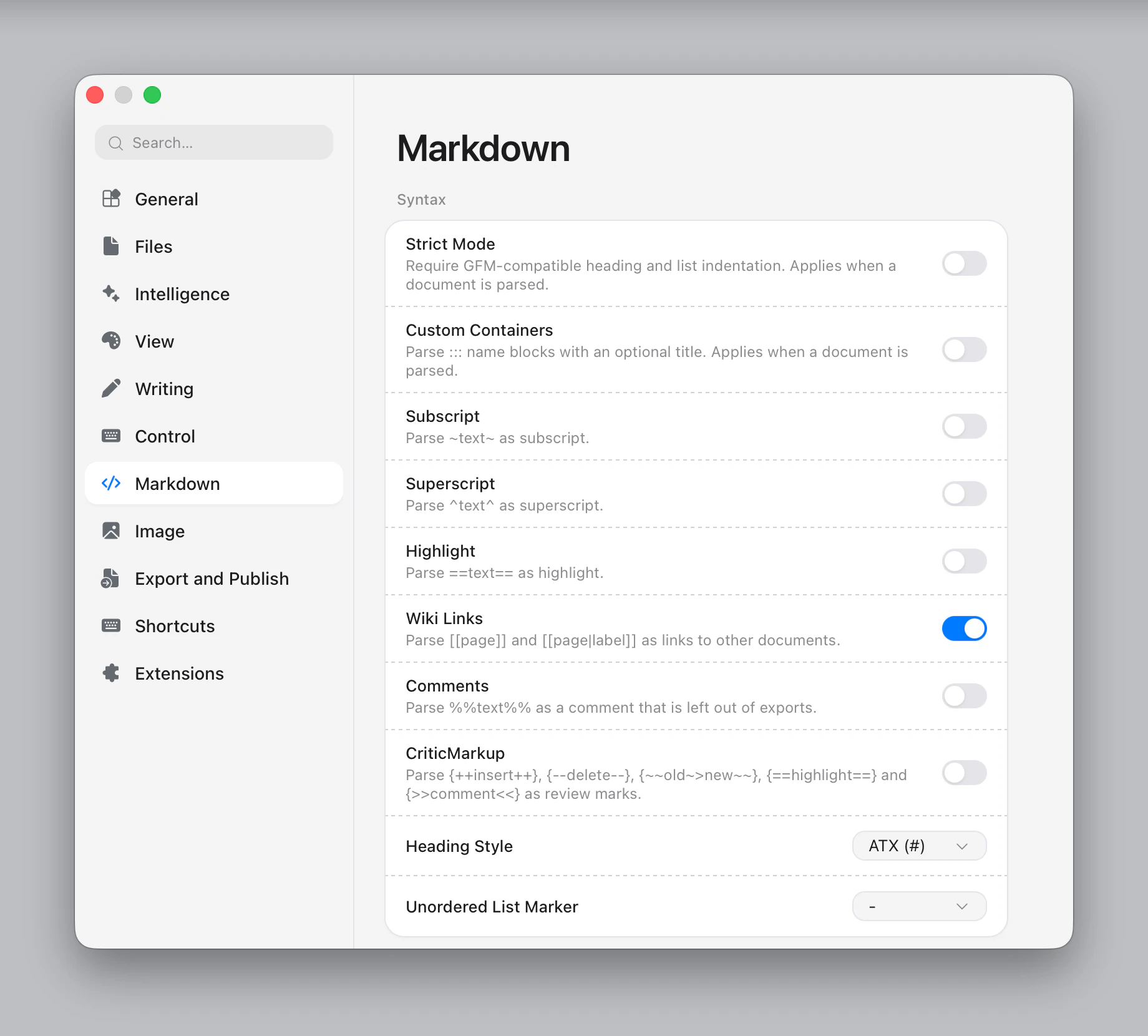
- Syntax: Strict Mode, Custom Containers, Subscript, Superscript, Highlight (all off), Wiki Links (on), Comments, CriticMarkup (off), Heading Style (ATX
#or Setext), Unordered List Marker (-,+or*). See Writing Markdown. - Citations: on/off, Default Bibliography, Citation Style, Zotero. See Citations.
- Math: Inline Math, LaTeX Math Delimiters, Code Block Math (on), Enable physics Package, Use Legacy Inline Math Parsing (off), Auto Numbering, SVG or LaTeX for unstyled HTML, Math Font and TeX Macros.
- Code Fences: Show Line Numbers (off), Wrap Long Lines (on).
- Syntax by Extension: when several extensions draw the same code block language, which one does.
- Custom Formats: your toggleable wrappers, coloured text and highlights by default. See Templates and Snippets.
Image
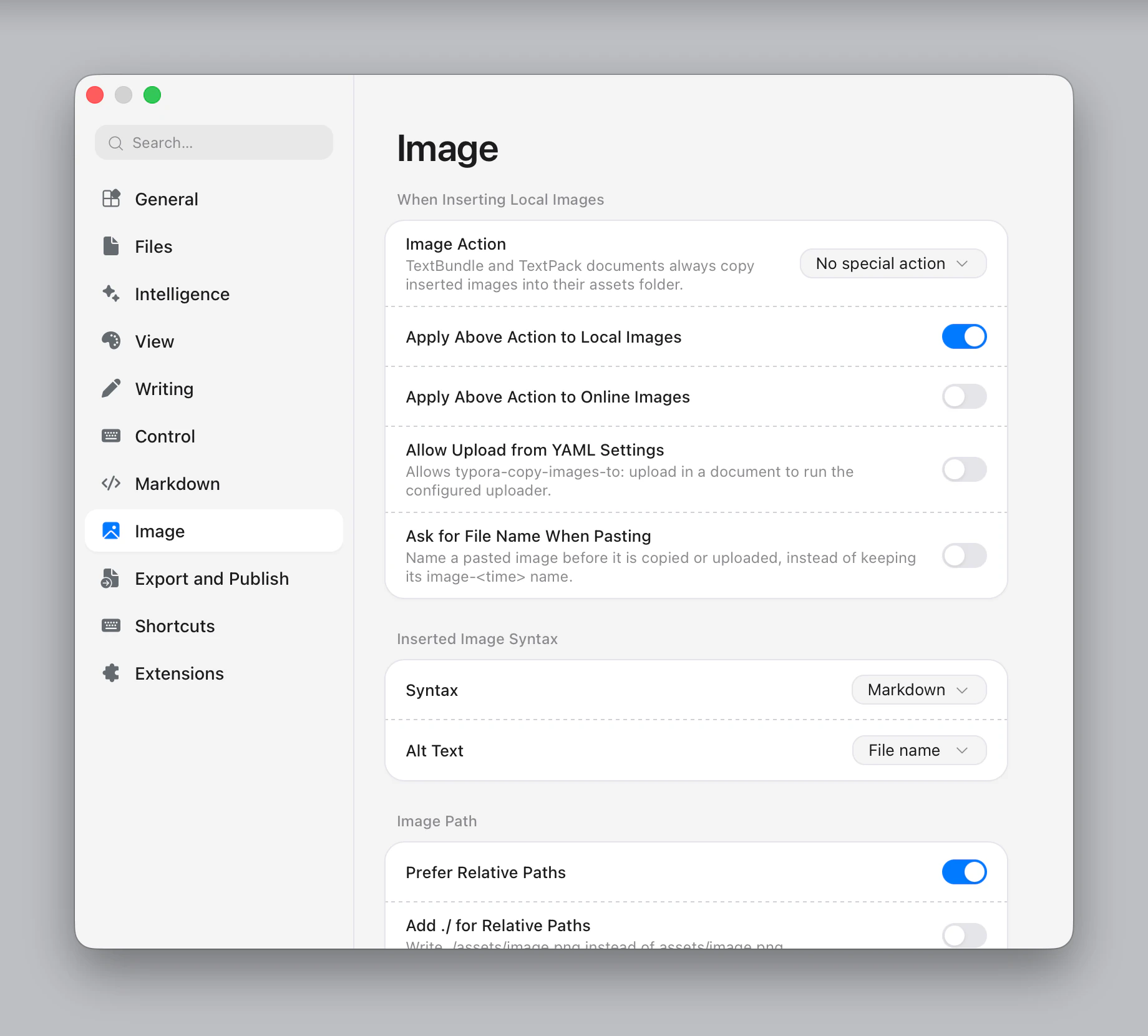
What happens when you insert an image (copy to a folder, upload, convert to TextBundle), the syntax and paths Typora writes, and the image uploader. See Images.
Export and Publish
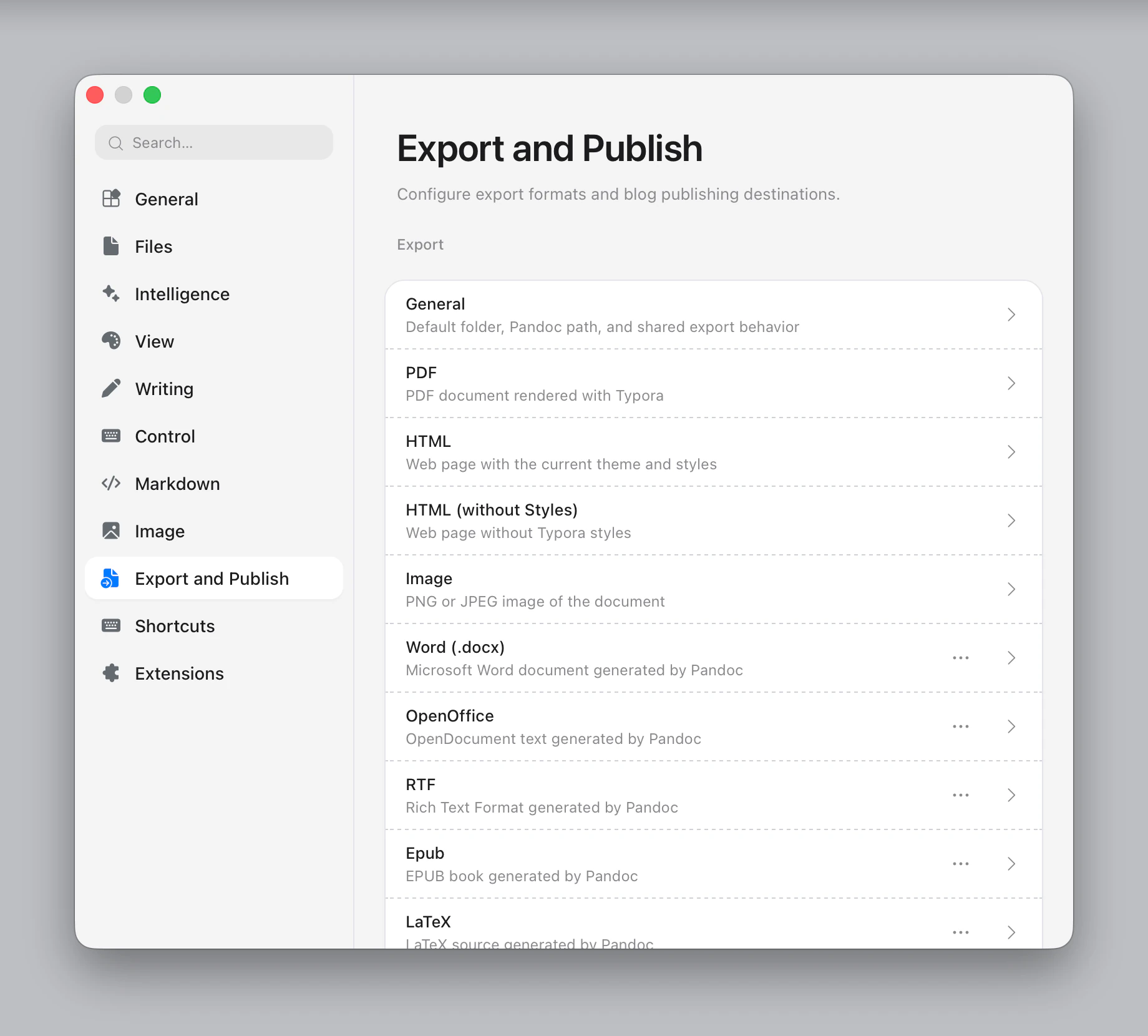
One page per export profile, plus General (default export folder, Pandoc path, open the folder after export). Add Export Option adds profiles from templates. See Export and Import. The Publish group connects sites to local folders. See Publish.
Shortcuts
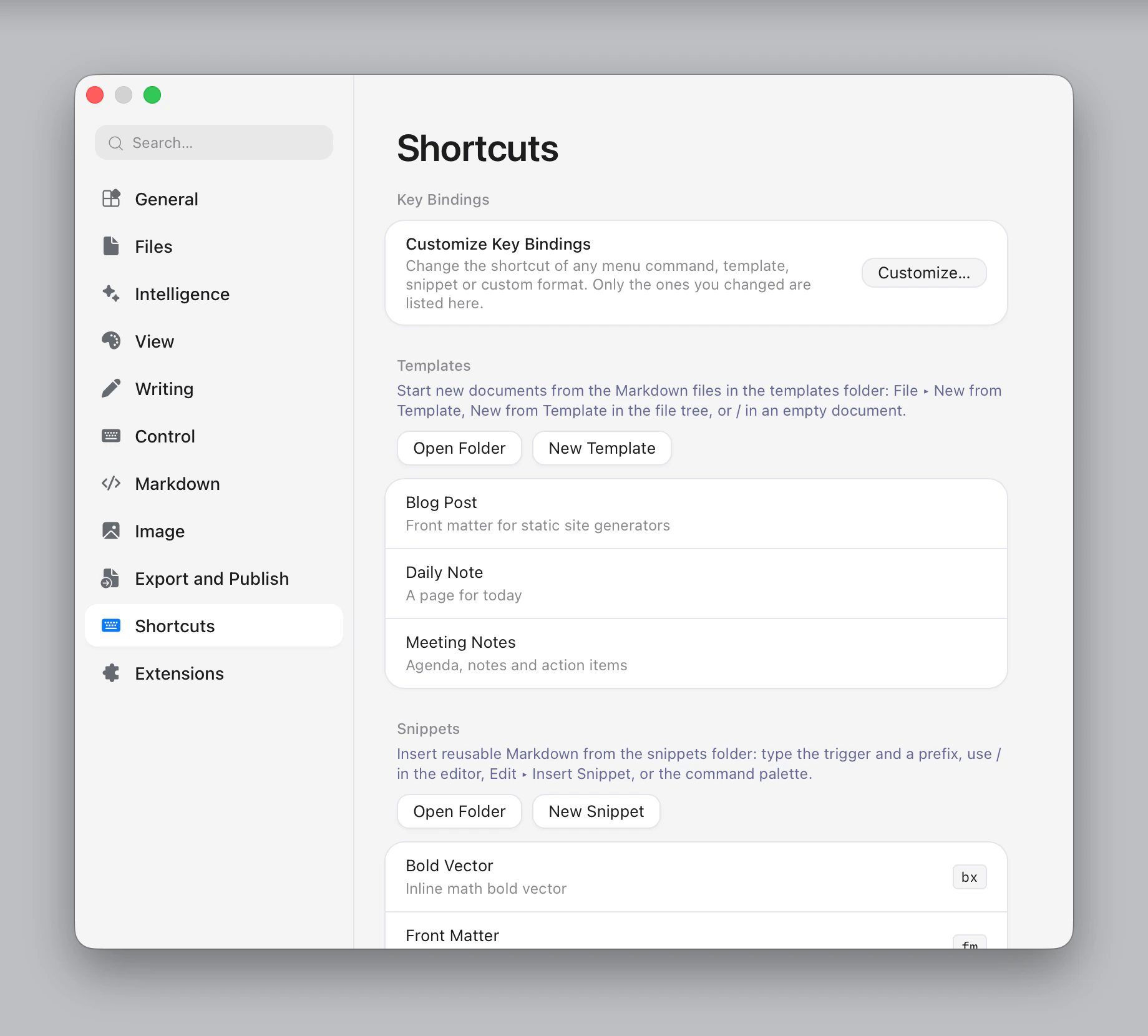
- Key Bindings: Customize… opens every command (menu commands, templates, snippets, custom formats and global hotkeys) with search, by name or by pressing a shortcut. The page itself lists only what you changed, each with Reset. Global hotkeys work even when another app is in front (not available on every platform).
- Templates and Snippets: your libraries, with Open Folder and New Template / New Snippet. See Templates and Snippets.
- Typing: Suggest Snippets While Typing (on), the snippet Trigger (
/, the slash menu), and Text Replacement with your list of rules.
Extensions
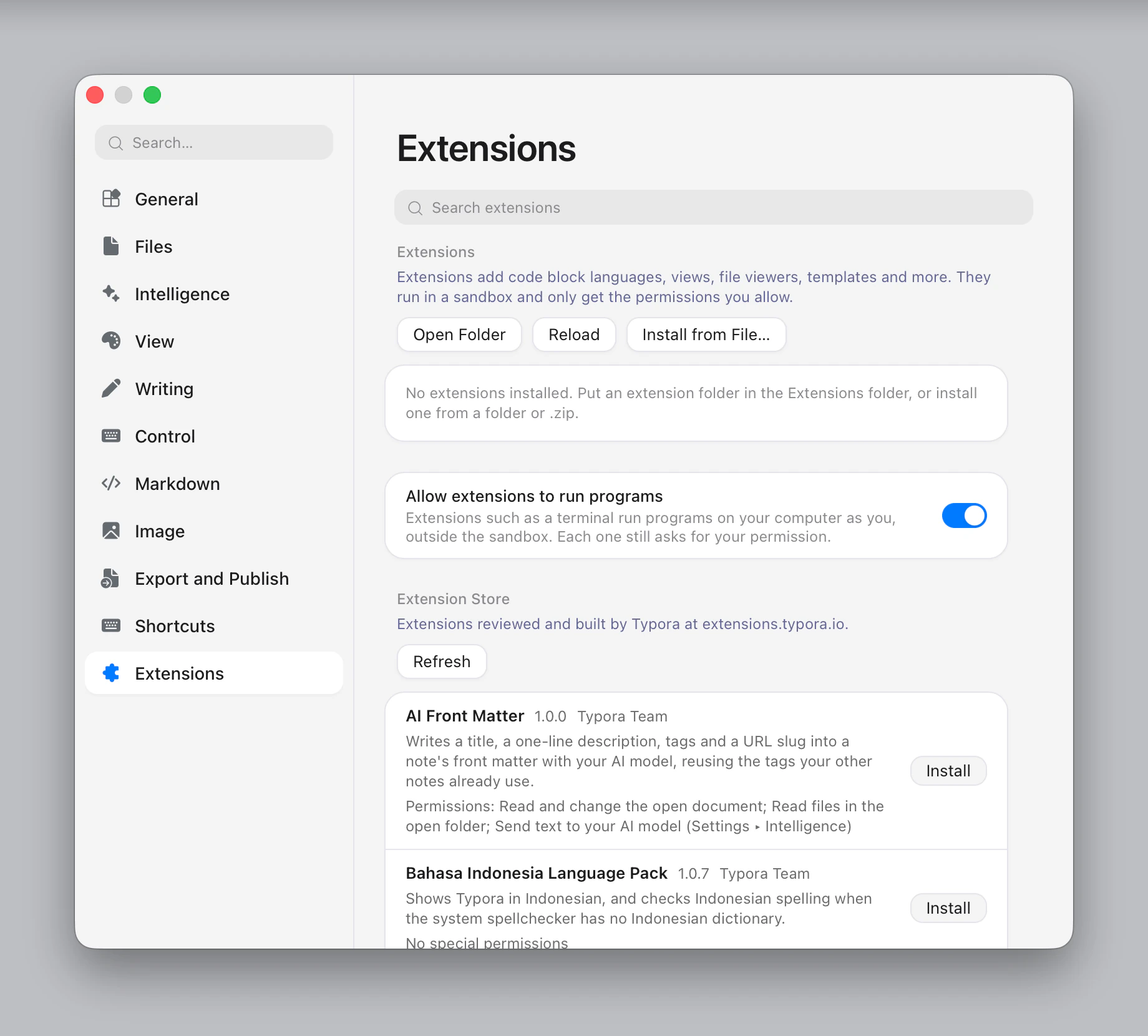
Installed extensions, the extension store, and each extension's permissions, settings and log. See Extensions.