
Appearance
Slash Commands
Type / in the editor to open a menu of everything you can insert. Keep typing to filter it, press ↑ and ↓ to choose and Enter to apply. Esc closes it, and the / stays as ordinary text.
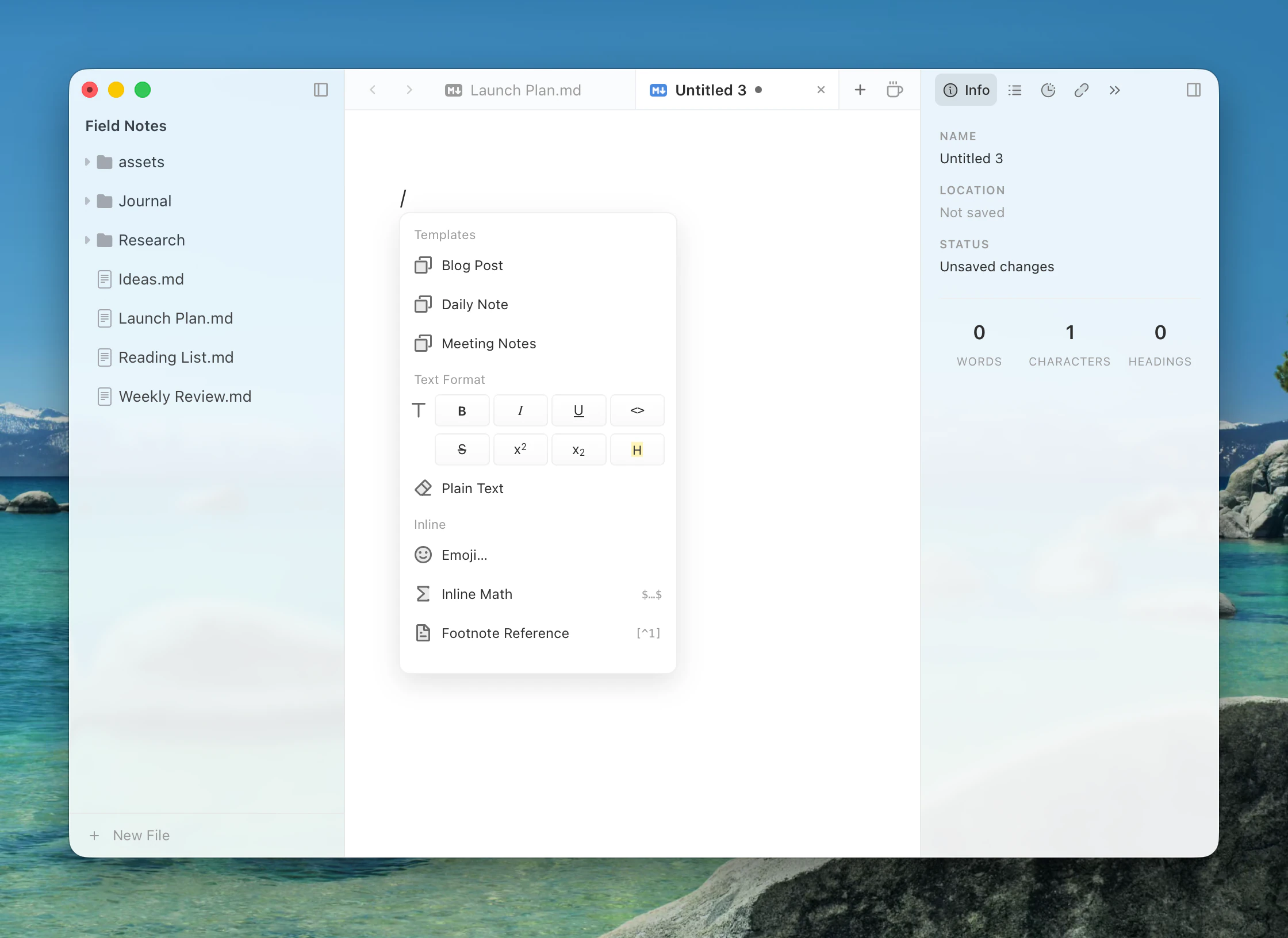
Items answer to their names and to short aliases: h2 finds Heading 2. Resting on an item shows a preview of what it inserts.
The + button that appears beside a block when you hover it opens the same menu.
The menu doesn't open where Markdown isn't parsed, such as inside a code block or math.
What's in the menu
| Group | Items |
|---|---|
| Text Format | Strong, Emphasis, Underline, Inline Code, Strikethrough, Superscript, Subscript, Highlight, Plain Text |
| Inline | Emoji…, Inline Math, Footnote Reference |
| Block | Heading 1–6, Paragraph, Blockquote, Bullet List, Numbered List, Task List, Table, Horizontal Rule, Page Break, Math Block, Code Fence, HTML Block, Link Reference, Footnote Definition, Table of Contents, YAML Front Matter |
| Code languages | Type a language after / to start a code block in it |
| Date and time | Type /today or /now for the date or the time, in several formats |
| Templates | Your templates, in an empty document |
| Snippets | Your snippets, by name or prefix |
| Commands | Commands from extensions |
Superscript, Subscript and Highlight write syntax that Typora reads only when it is turned on in Settings ▸ Markdown ▸ Syntax.
Snippets with their own trigger
Snippets appear in the / menu. To reach them with another character as well, set Trigger in Settings ▸ Shortcuts ▸ Typing, for example ;. Typing that character at the start of a word then opens just your snippets.