
Appearance
Tables
Creating a table
- Type a header row such as
| Name | Owner |and press Enter. - Choose Table in the
/menu. - Choose Paragraph ▸ Table ▸ Insert Table (Ctrl+T).
Rows and columns
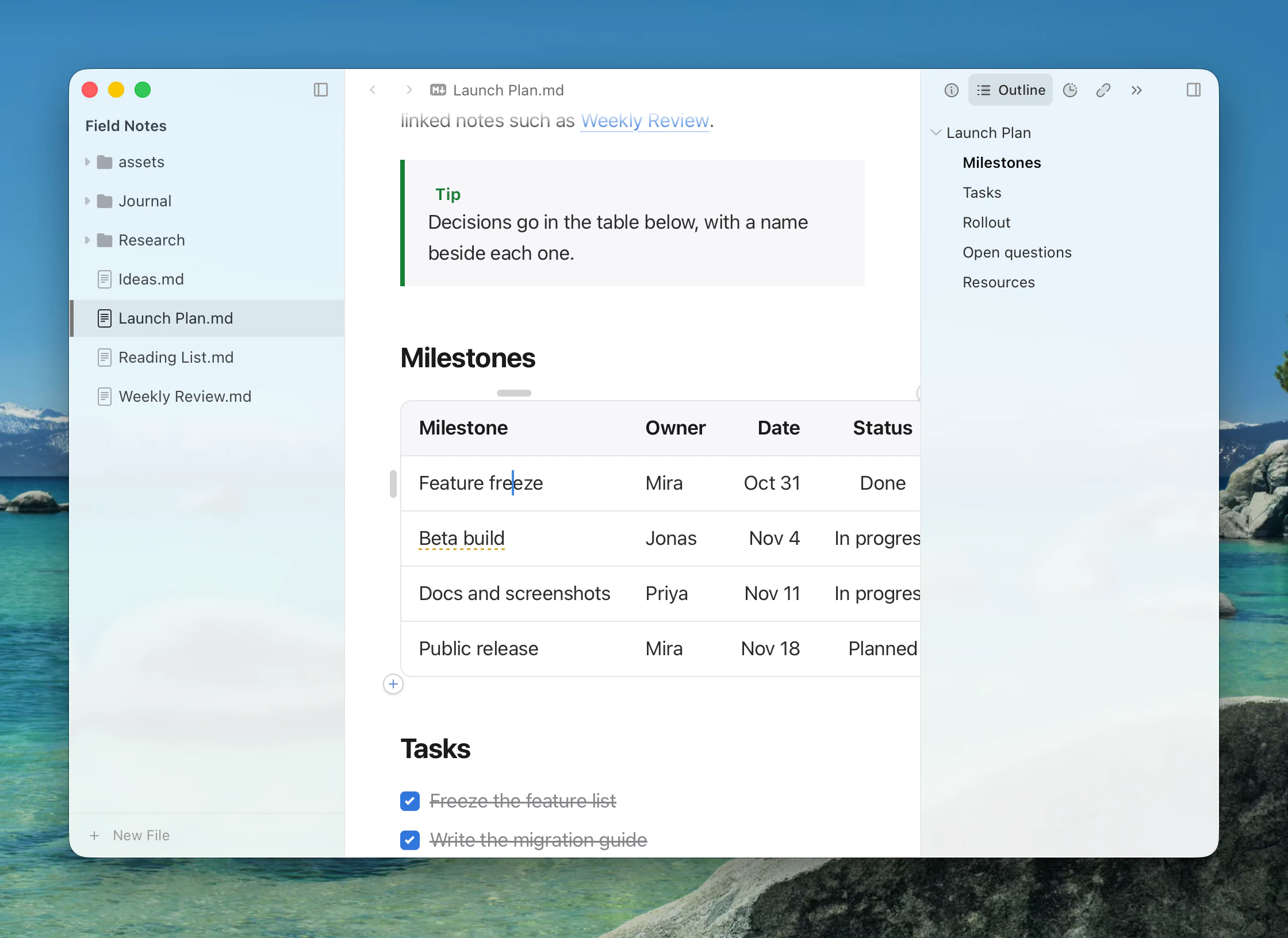
Hover a table to see its handles. Click + at the edge to add a row or column there, or drag a handle to move one. Click a handle for a menu: insert a row or column on either side, copy, cut, and set a column's alignment to Auto, Left, Center or Right. Drag across cells to select rows and columns, and press Delete to remove a selected row or column.
Paragraph ▸ Table has the same commands.
| Command | Shortcut |
|---|---|
| Add Row Below | Ctrl+Enter |
| Delete Row | Ctrl+Shift+Backspace |
| Move Column Left / Right | Alt+← / → |
| Next / previous cell | Tab / Shift+Tab |
| Cell below | Enter |
| Line break in a cell | Shift+Enter |
On macOS these are the Control key, not Command.
Alignment
Alignment is stored in the Markdown, in the line under the header:
markdown
| Left | Center | Right |
| :--- | :----: | ----: |
Tidying the source
Paragraph ▸ Table ▸ Prettify Source Code lines up the pipes in the Markdown. Copy Table copies the whole table, and Delete Table removes it. See Copy and Paste for pasting cells from spreadsheets.
Column widths follow their content; they can't be dragged.