
Appearance
Editing
Writing Markdown covers what you can type. This page covers the commands that work on it. They are all in the menus and the command palette, and any of them can have a shortcut of your own.
In the tables, Mod means ⌘ on macOS and Ctrl on Windows and Linux.
Selecting
Edit ▸ Selection grows the selection by structure:
| Command | Shortcut |
|---|---|
| Select Word | Mod+D |
| Select Line / Sentence | Mod+L |
| Select Styled Scope | Mod+E |
| Select Paragraph / Block | Mod+Alt+P |
| Select All | Mod+A |
Styled scope is the bold, link or other inline format around the caret.
The same submenu jumps around the document: Jump to Top, Jump to Selection (Mod+J), Jump to Bottom, Jump to Line…, Jump to Line Start and Jump to Line End.
Edit ▸ Delete Range deletes the same units: paragraph or block, line or sentence, styled scope, or word.
Moving blocks
Move Block / Line Up and Down (Alt+↑ and ↓) move the current block past its neighbour.
Hover a block and a handle appears at its left edge. Drag the handle to move the block, or click + beside it to insert a new block there.
To move a whole section, drag its heading in the Outline tab. The heading goes with its sub-headings and text, at the same level, as one undo step. Esc cancels. Only top-level headings can be dragged this way, not ones inside a quote or list.
Headings and paragraphs
- Paragraph ▸ Heading 1 to 6 and Paragraph set the block type (Ctrl+1 to 6, Ctrl+0).
- Increase Heading Level and Decrease Heading Level (Ctrl+=, Ctrl+-) step through them.
- Insert Paragraph Before and After add an empty paragraph, which helps next to a table or code block.
To number headings, see Auto Numbering.
Lists and tasks
- List Indentation: Indent (Mod+]) and Outdent (Mod+[).
- Drag a list marker (the bullet or number) to move the item.
- Task Status: Toggle Task Status, Mark as Complete and Mark as Incomplete. You can also click a checkbox, or create a list with Task List (Ctrl+Shift+X).
Tables
See Tables.
Code blocks
Paragraph ▸ Code Tools has Copy Code Content, Auto Indent Selected Code and Auto Indent Whole Code.
Alerts
Paragraph ▸ Alert turns the block into a Note, Tip, Important, Warning or Caution block.
Images
Hover an image for its toolbar: Source shows the Markdown, Edit opens its alt text, path and title, and Expand opens the viewer.
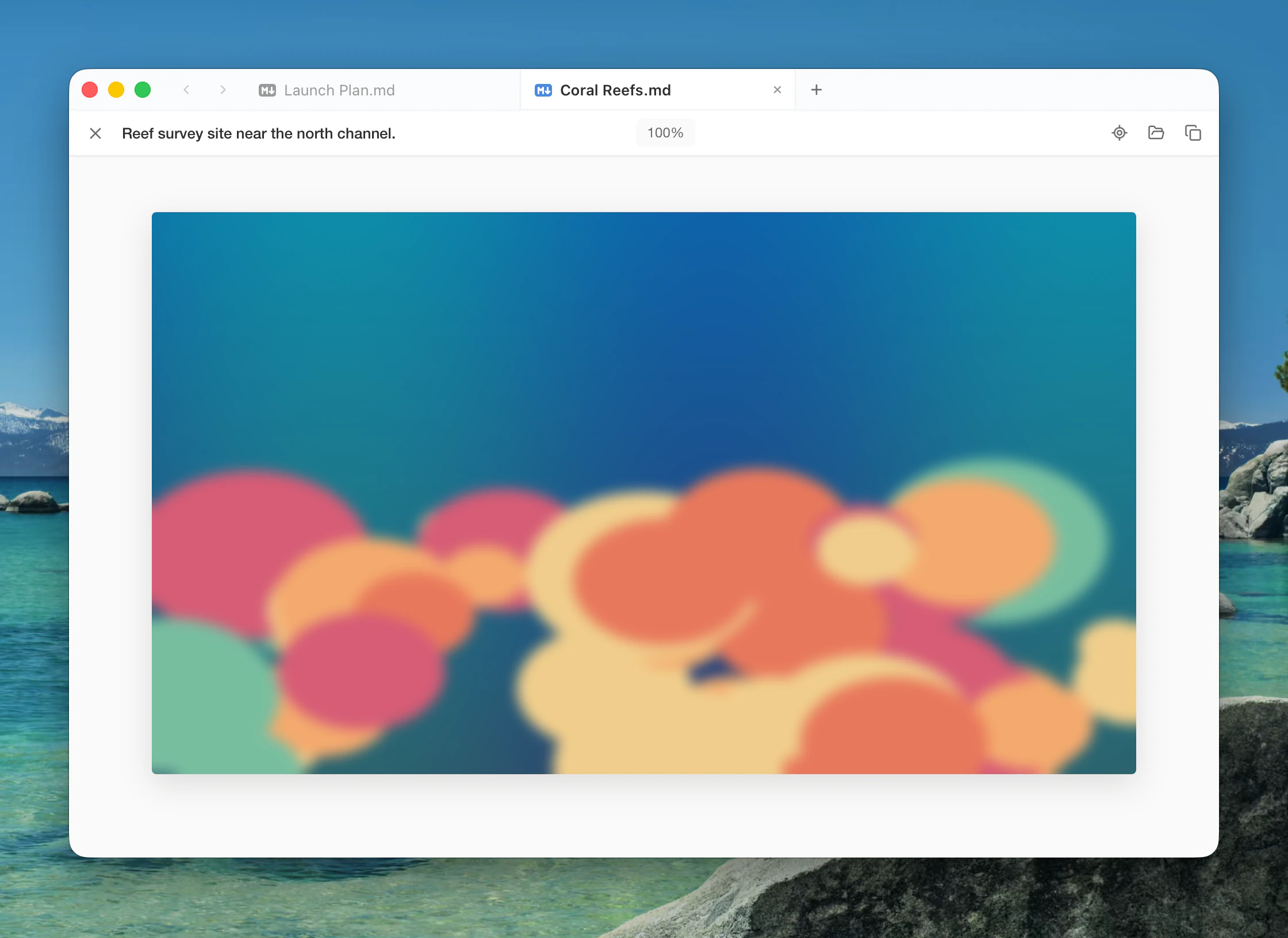
In the viewer, wheel or pinch to zoom from 10% to 1000%, and drag to pan. It steps through every image in the document.
| Key | Does |
|---|---|
| ← →, Home End | Previous, next, first, last image |
| + - | Zoom in, zoom out |
| 0 | Fit to the window |
| Esc | Close |
Format ▸ Image has the rest: insert, zoom (25% to 200%), switch between Markdown and HTML syntax, copy or move an image or all of them, upload, delete the file, and clean up unused images. See Images.
Word count
View ▸ Toggle Word Count Popover shows words, characters, lines and reading minutes, for the document and for the selection. The Info tab has the document's totals too.
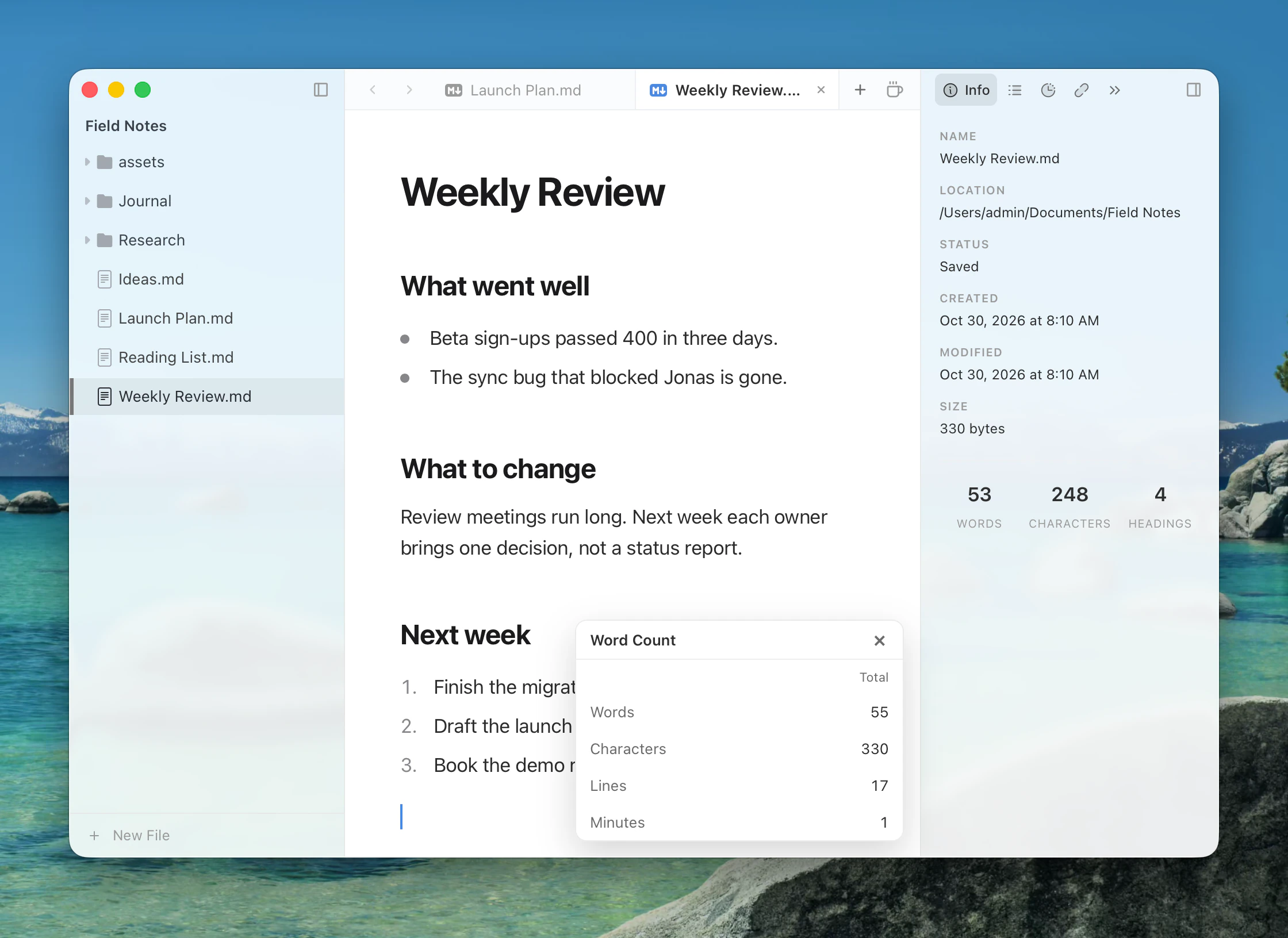
Settings ▸ Control ▸ Word Count ▸ Word Counting Method is Default, which uses punctuation-aware word boundaries, or Whitespace-separated, which counts what's between spaces.
Vim key bindings
Turn on Edit ▸ Vim Key Bindings, or Settings ▸ Control ▸ Typing ▸ Vim Key Bindings, for modal editing with Normal, Insert and Visual modes. It works in the editor and in Source Code Mode, and a line at the bottom shows the mode.
| Ex command | Does |
|---|---|
:w, :wa | Save, save all |
:q, :wq, :x | Close, save and close |
:<line> | Go to a line |
:s/old/new/ | Replace, with g and i flags |
:noh | Clear the search highlight |
:q! still asks about unsaved changes.
Chinese typography
When your interface or system language is Chinese, Settings ▸ Writing ▸ Chinese Typography adds three options, all off by default:
- Auto Pair Chinese Brackets and Quotes pairs (), 「」, 『』, 《》, 【】 and 〈〉.
- Add Spaces Between Chinese and Latin spaces out Chinese characters from Latin letters and numbers as you type.
- Chinese Markdown Shortcuts lets Chinese punctuation start blocks, such as 》 and a space for a quote.