
Appearance
Folder Sync
Your notes are plain files, so any sync app already works with them. Typora can also sync a folder by itself, in the background, for when no sync app manages it.
Set this up in Settings ▸ Files ▸ Favorite Folders & Sync.
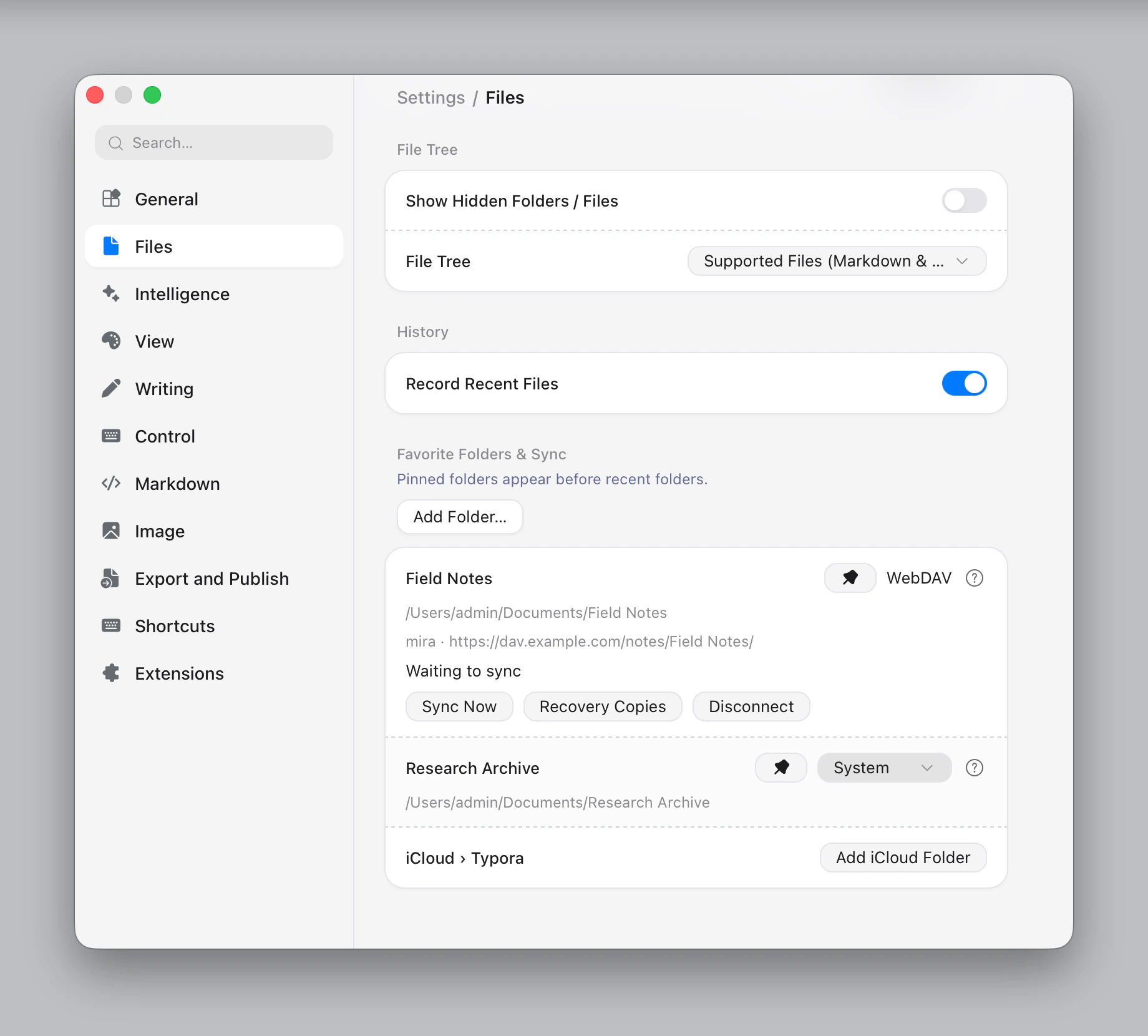
Favorite folders
Add Folder… pins a folder. Pinned folders appear before recent folders in the empty sidebar and the folder menu. Unpinning a folder doesn't touch its files.
Choosing how a folder syncs
Each favorite folder has a sync backend:
| Backend | What it does |
|---|---|
| System (default) | Typora doesn't sync this folder. iCloud Drive or a sync app such as OneDrive or Dropbox keeps it up to date. |
| WebDAV | Typora syncs it with a WebDAV server you sign in to. |
| OneDrive | Typora syncs it with your OneDrive. |
| Dropbox, Google Drive | Typora syncs it through a sync extension you install. |
Don't sync twice
Use a Typora backend only when no sync app manages the folder. A folder inside iCloud Drive or a OneDrive folder shows Synced by that provider instead of the menu, and can't be given a second backend. Neither can a folder inside, or containing, one that is already synced.
iCloud on macOS
Add iCloud Folder adds Typora's folder in iCloud Drive, the one Typora on iPhone and iPad uses. iCloud Drive must be on. iCloud does the syncing, so there is no backend to choose.
Connecting
Choose a backend, then click Choose Remote Folder….
- WebDAV: enter the server address, your username, and your password or app password.
- OneDrive: your browser opens. Enter the code Typora shows on the Microsoft sign-in page, and the dialog continues by itself.
- Dropbox, Google Drive: install the extension from the store. You register your own OAuth app with the service and enter its OAuth Client ID, plus the OAuth Client Secret if it needs one; the extension's README explains how. Then sign in through your browser.
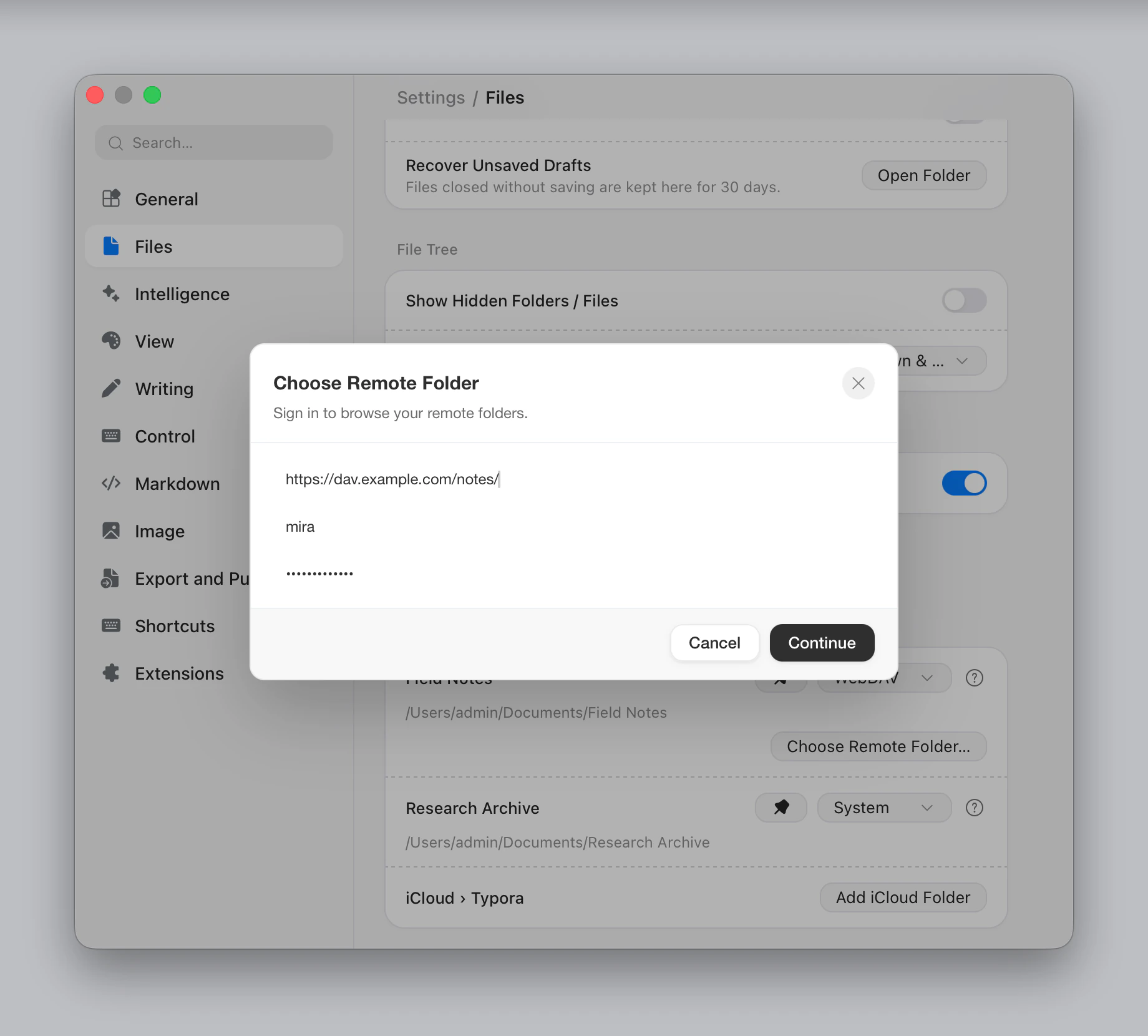
Next, browse to a remote folder, or make one with New Folder, and click Choose This Folder. Before turning sync on, Typora checks that the server handles conditional writes correctly, since that is what keeps it from overwriting newer files. A server that doesn't is refused.
Sign-in details are kept in your system's secure storage, never in your settings. Disconnect removes them and leaves both the local and remote files as they are.
While it runs
A connected folder shows its account, remote folder and status:
| Status | Meaning |
|---|---|
| Syncing… | A pass is running. |
| Waiting to sync | The next pass is scheduled. |
| Checked files are up to date | The last pass found nothing to do. |
| Conflicts need review | See Conflicts. |
Anything else is a message from the server or Typora, such as Sign in again. After most failures Typora retries by itself, waiting up to five minutes. Sync Now runs a pass immediately. Sign-in problems wait for Sync Now or a reconnect.
The first pass downloads every remote file. After that, open files are checked about every 15 seconds while the window is visible.
A document open in a synced folder saves by itself shortly after you stop typing, even with Auto Save off, so your changes reach the server.
In the file tree
Files that need your attention show a small icon in the sidebar:
| Tooltip | Meaning |
|---|---|
| Conflicts need review | The file has an unresolved conflict. |
| Syncing… | The file is being transferred or checked. |
| Not downloaded | The file is on the server only. Opening it downloads it first. |
No icon doesn't guarantee a file is synced; the folder's status in Settings tells you that. The File Sync row in the sidebar's folder menu shows the provider, and clicking it opens that folder in Settings.
Conflicts
When a file changes in both places, Typora merges the two versions if it can. This works for .md, .markdown and .txt files whose changes don't overlap.
If it can't, nothing is lost:
- Your local file stays where it is.
- The remote version is saved beside it as
name.conflict-<id>.md, and syncs as a file of its own. - The folder's status shows Conflicts need review, and the file appears in Settings.
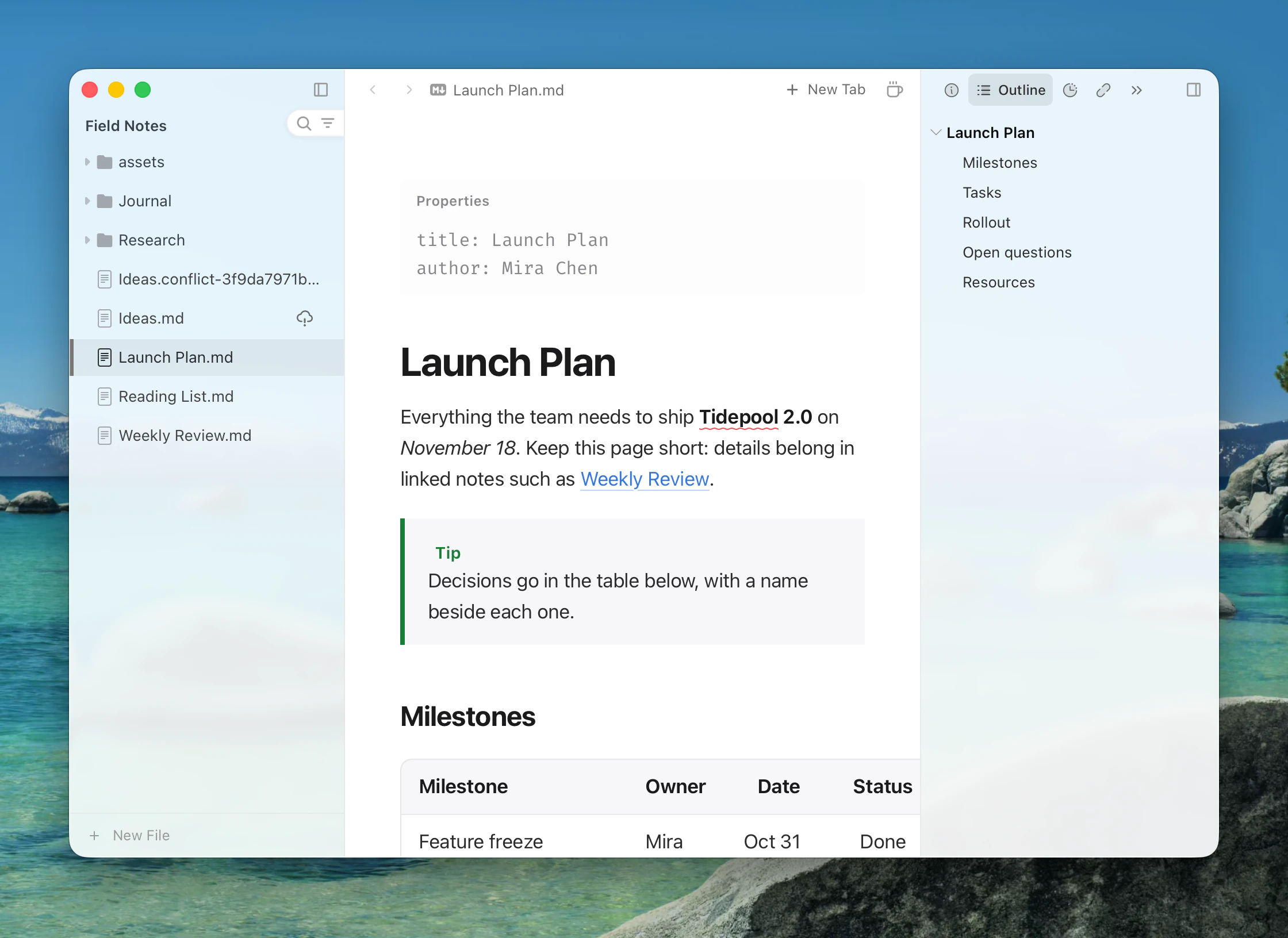
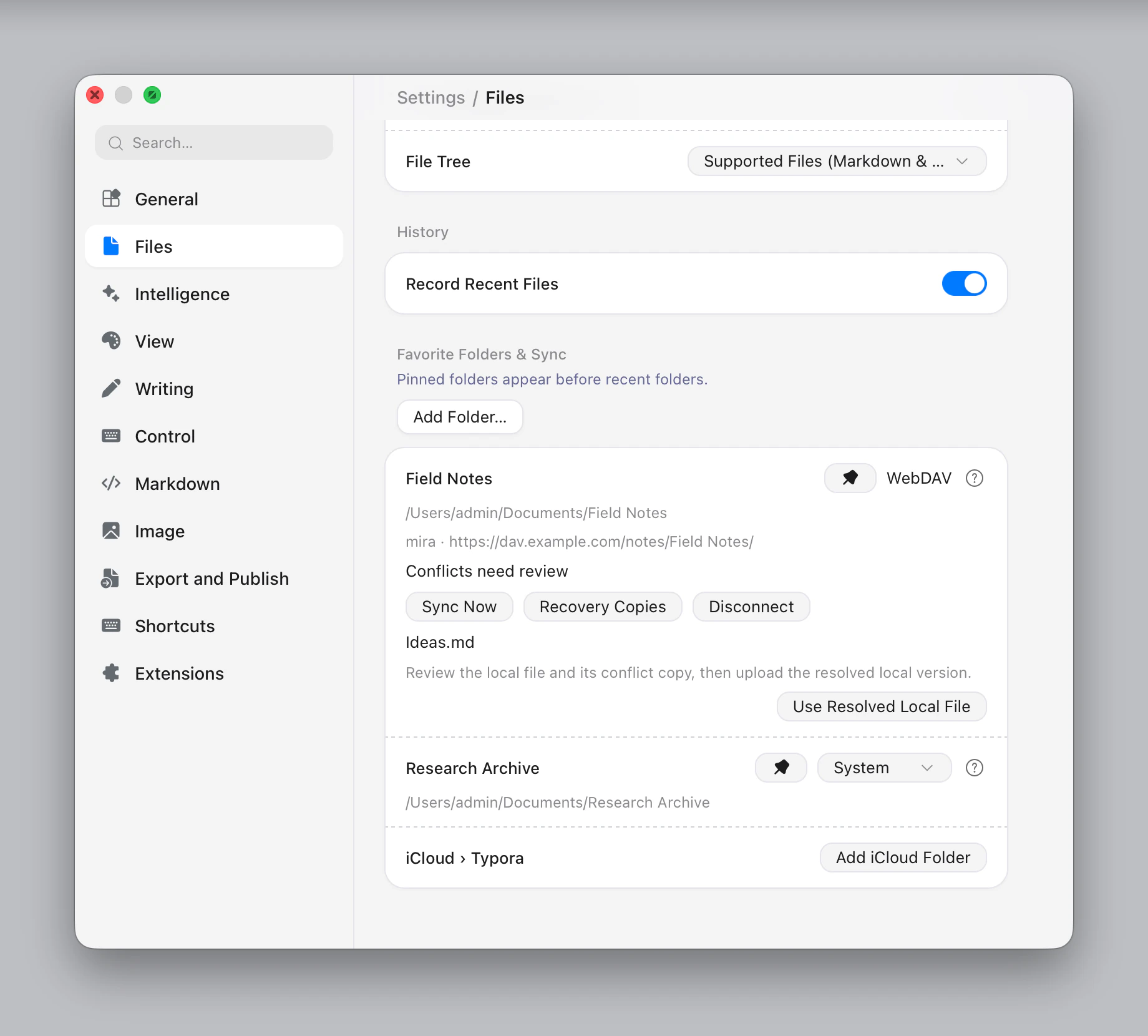
Compare the two, make the local file the version you want, then click Use Resolved Local File. Delete the conflict copy yourself when you are done with it. A file in conflict doesn't sync until you resolve it.
Recovery copies
Before a merge, a remote update or a remote delete changes your file, Typora saves the versions involved. Recovery Copies opens that folder. It is in Typora's app data, outside the synced folder, and isn't cleaned up automatically.
What doesn't sync
- Symbolic links.
- Files larger than 64 MB.
- Google Docs, Sheets and other Google-native files; export them to ordinary files first.
- Deleting an empty folder doesn't delete it on the other side.
Hidden files are synced like any others, including .git folders and .DS_Store. Avoid syncing a Git repository this way.
Deletions wait for a complete, clean pass, so a failed listing can't remove your files.