
Appearance
Split View
A split view shows documents side by side in one tab. A column can also hold a web page or a file preview.
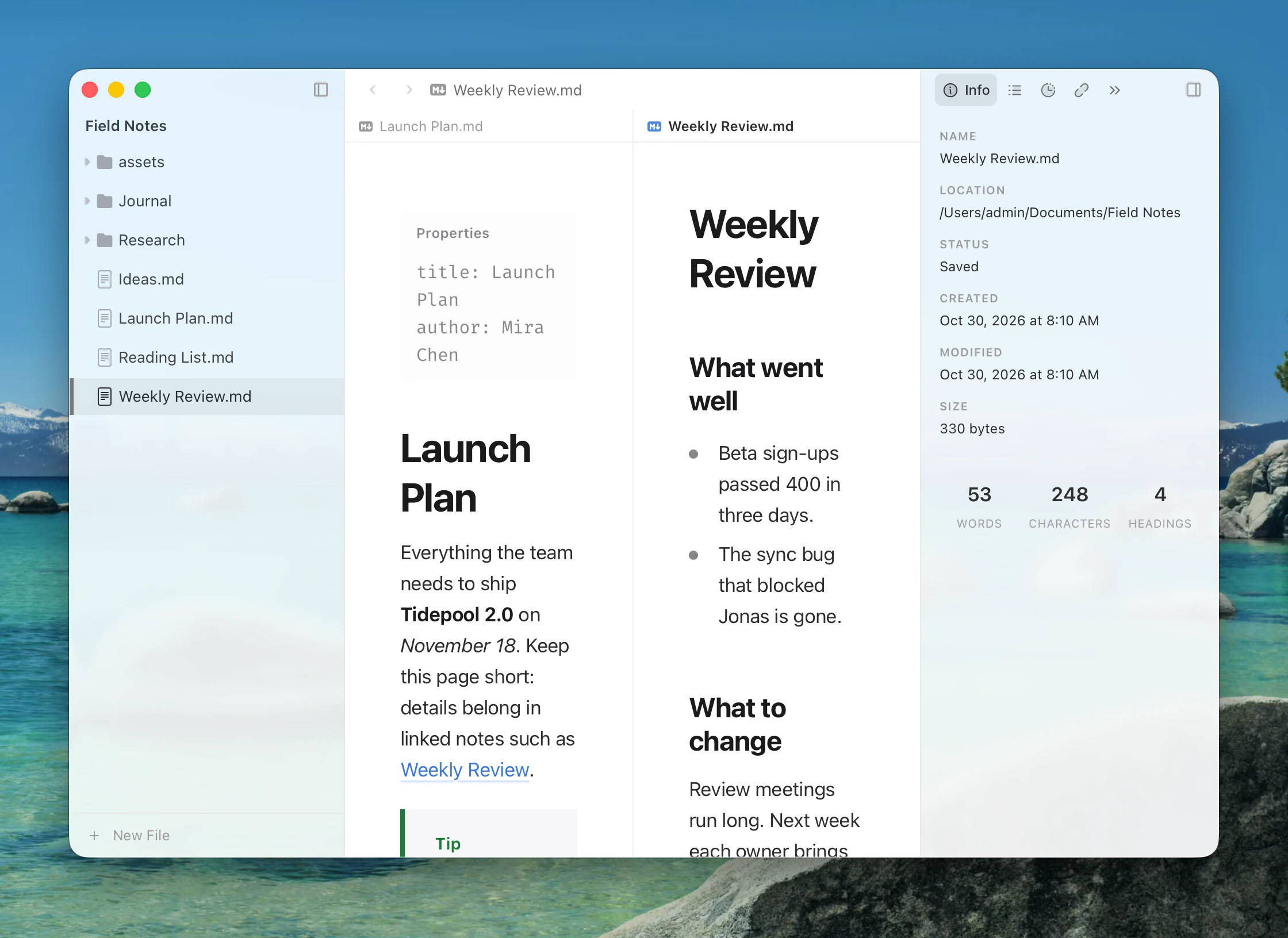
To open a document in a column beside the current one:
- Right-click a tab and choose Open in Split View.
- In the file tree, right-click and choose Open in… ▸ Split View.
- On a link, open the menu beside Open and choose Open in Split View.
- In Open Quickly, press Mod+K and choose Open in split view.
- Drag a file to the document's left or right edge, or between two columns. See Dragging files.
View ▸ Split View ▸ Split Right (Mod+Alt+\) opens the same document in a second column, so you can look at two parts of it at once. Saving either one saves both.
| Command | Shortcut |
|---|---|
| Split Right | Mod+Alt+\ |
| Focus Left Split | ⌘Ctrl← on macOS |
| Focus Right Split | ⌘Ctrl→ on macOS |
| Remove from Split View | — |
Two columns start at half each. With three or more, the row scrolls sideways. Drag the line between columns to resize them.
A split is one tab on the strip, shown as A | B. Drag a column by the bar naming its file to reorder it, or onto the title bar to give it a tab of its own. A split left with one column becomes an ordinary tab.