
Appearance
AI
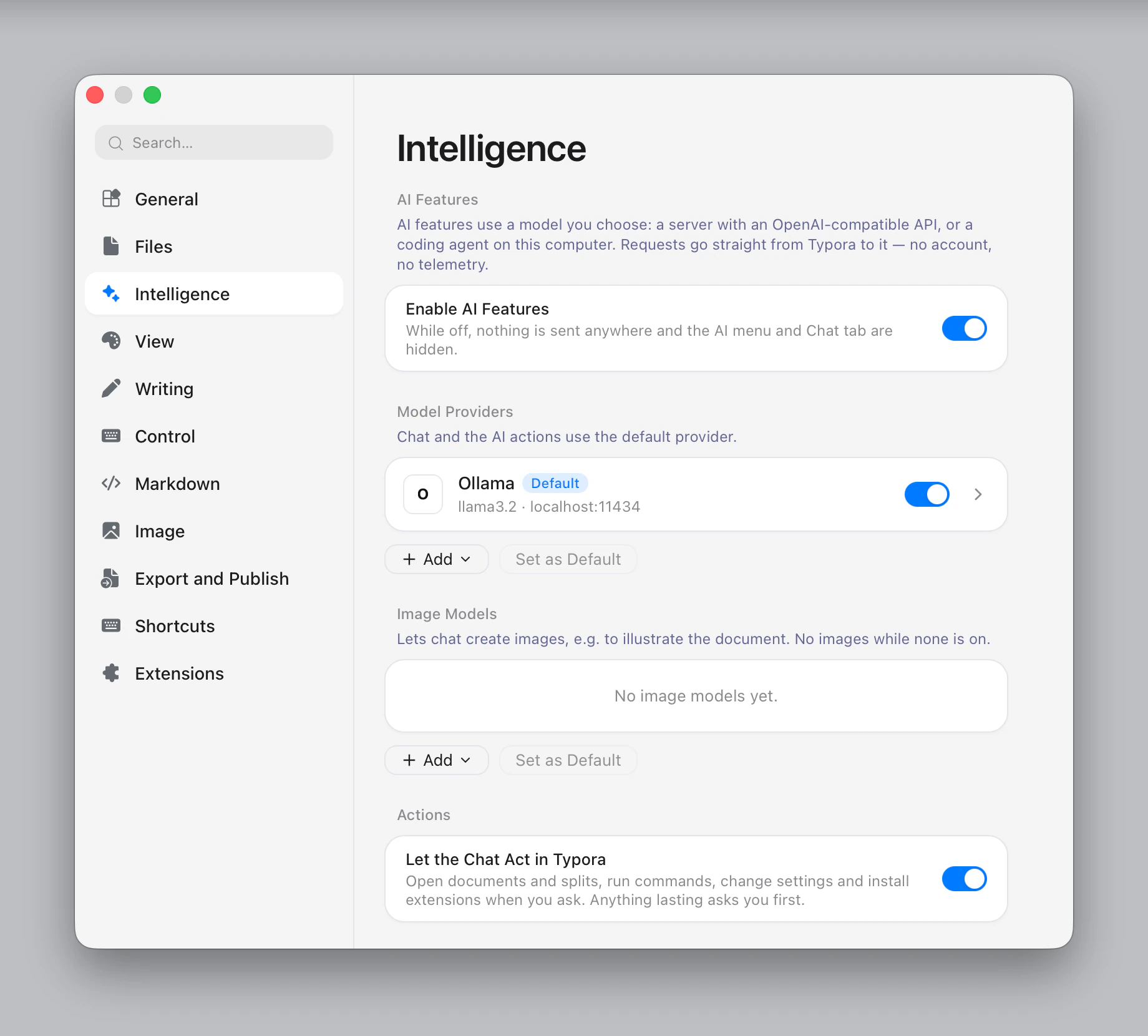
Typora's AI features use a model you choose: a server with an OpenAI-compatible API, or a coding agent already installed on your computer. Requests go straight from Typora to it, with no Typora account and no telemetry.
The features are on by default, but nothing is sent anywhere until you add a model. To hide them entirely, turn off Enable AI Features in Settings ▸ Intelligence; the AI menu and the Chat tab go away.
Connect a model
Open Settings ▸ Intelligence ▸ Model Providers and click Add:
| Group | Choices |
|---|---|
| Servers | OpenAI, Anthropic, DeepSeek, OpenRouter, Ollama, LM Studio, Custom… |
| Coding Agents | Claude Code, Codex, OpenCode |
Servers. Enter the API key, choose a model (Fetch Models lists what the server offers) and click Test to send a one-word request. Ollama and LM Studio run on your own computer and already have their local address filled in. Use Custom… for any other OpenAI-compatible server.
Coding agents. Typora finds the installed command and runs it with its own sign-in, so there is no key to enter. See Agents and MCP.
The first provider you add becomes the default. Select another and click Set as Default to change it; the model picker in Chat changes it too. If the default is off, Typora uses the first provider that is on.
API keys never go into your settings file or documents. They are kept in the macOS Keychain, the Windows Credential Manager, or your Linux desktop's keyring, one key per server. On Linux without a keyring, Typora warns you and asks before saving a key without encryption.
Chat
Open View ▸ Chat, or choose Chat in the detail panel (it may be under »). Settings ▸ View can move it forward. Chat has no default shortcut; you can assign one.
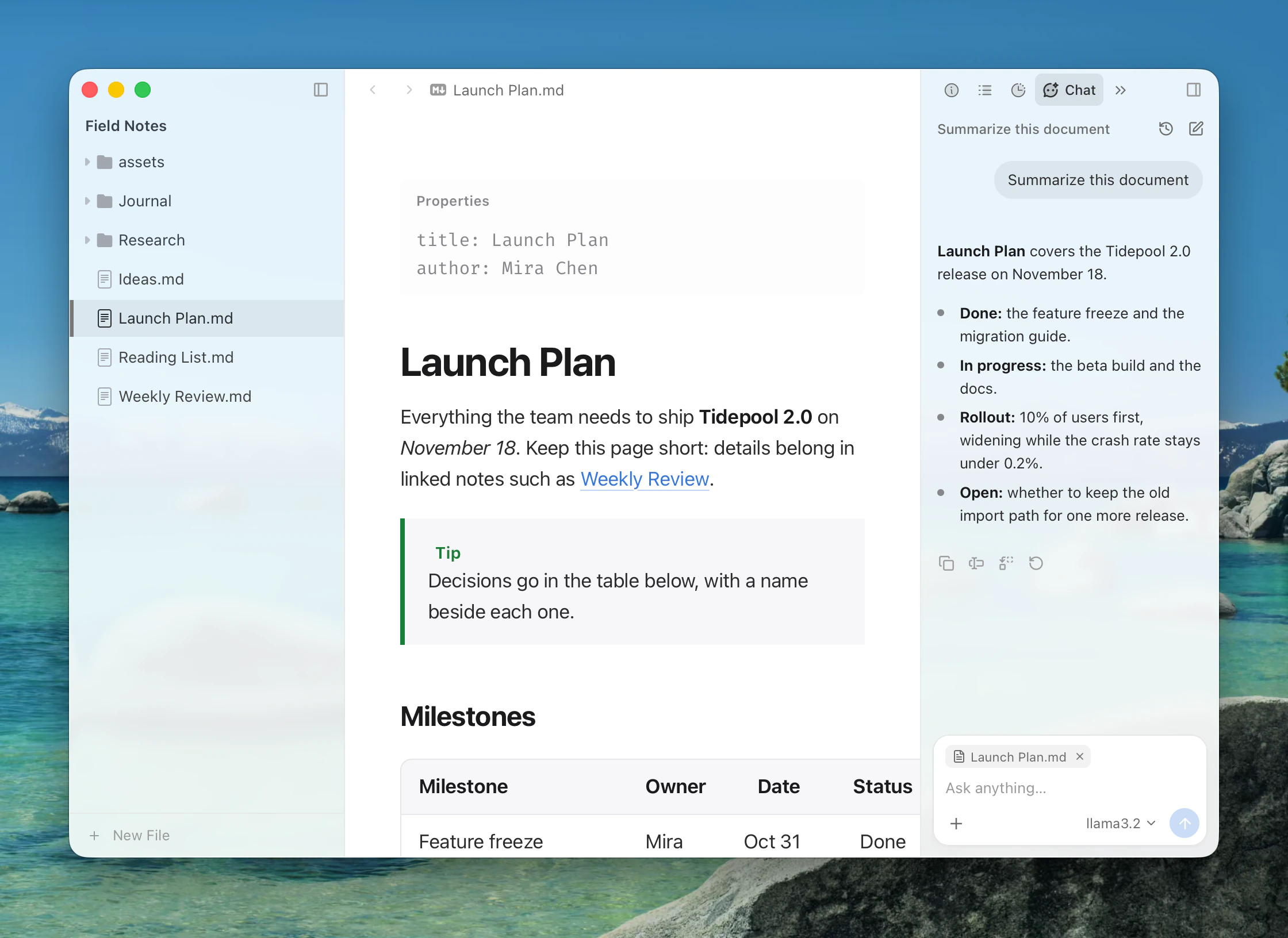
Ask about the document, or start with Summarize this document, List the key points, Suggest a better title or Find spelling and grammar mistakes. With text selected, Rewrite, Translate, Summarize and Continue appear above the box.
What the model sees. A short document goes along whole. From a longer one, the model gets the front matter, the outline and the section you are in, and it reads more when a question needs it. Maximum Context Length in Settings ▸ Intelligence ▸ Defaults caps the text sent with a request (24,000 characters). Remove the document chip to ask without the document.
Adding more. The + button adds your selection, mentions a file or link, attaches a file, or creates an image. Typing @ lists what the document links to and cites, and the files around it. Text files are sent as text. For an image or other binary file, the model gets only the name and path, not the file itself; a link is sent as its title and address.
Editing from chat. When the model proposes a change, the reply shows a diff card with Discard, Review… and Apply. Nothing changes until you choose. Other replies offer Copy, Insert at Cursor, Replace Selection and Regenerate.
Chat history. Chats are kept per document, in Typora's app data rather than beside the file. A document keeps up to 30 chats. New Chat starts another; the history menu lists this document's chats and searches All Chats. Chats in an untitled document last until it closes.
Enter sends and Shift+Enter starts a new line. Send Shortcut in Settings ▸ Intelligence ▸ Defaults can make Enter start a new line instead; Mod+Enter always sends.
Editing with AI
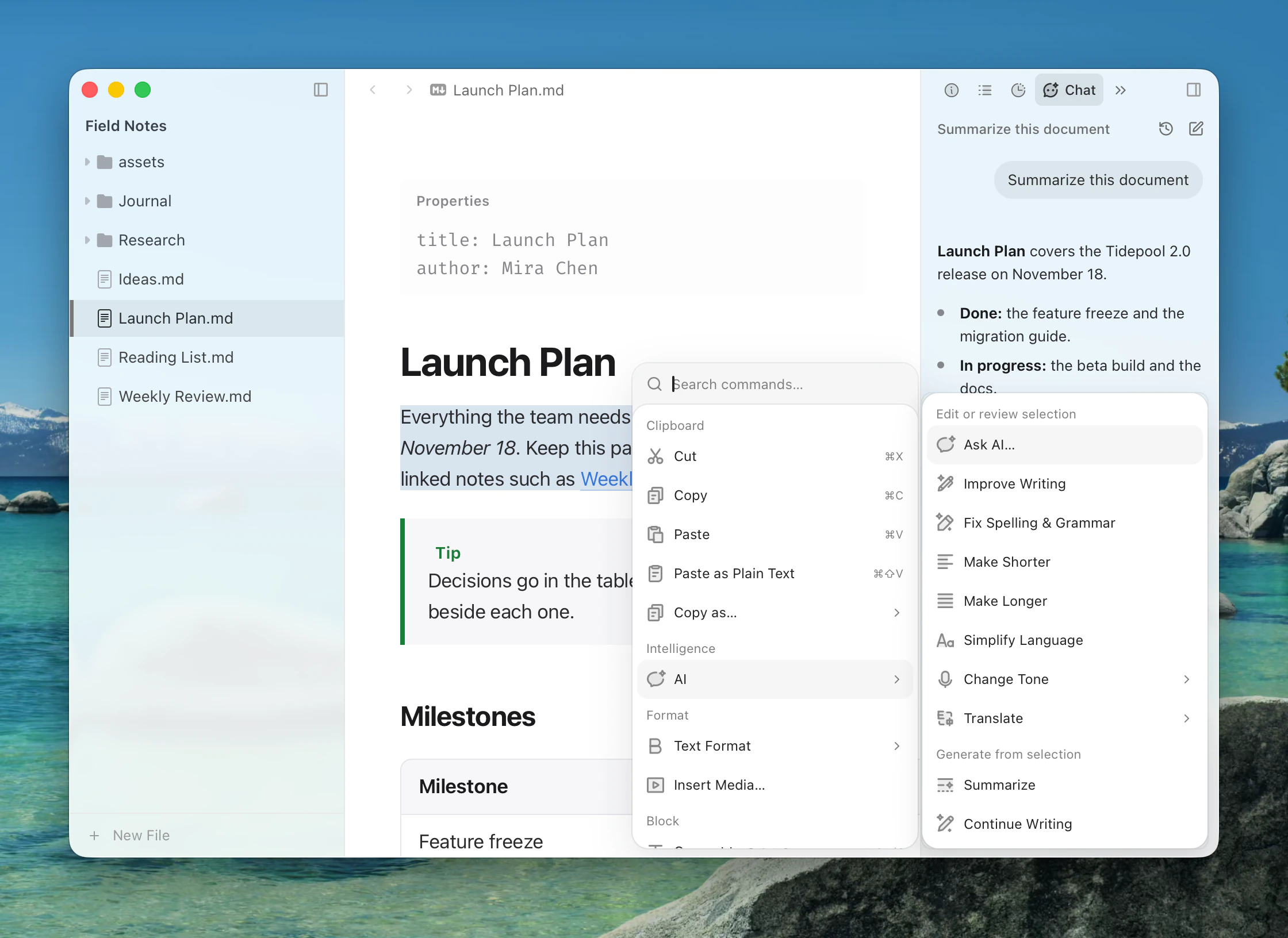
Right-click selected text and choose AI:
| Group | Actions |
|---|---|
| Ask AI… | Type your own instruction |
| Edit or review selection | Improve Writing, Fix Spelling & Grammar, Make Shorter, Make Longer, Simplify Language, Change Tone, Translate |
| Generate from selection | Summarize, Continue Writing, Create Image (with an image model) |
Change Tone offers Professional, Casual, Straightforward, Confident and Friendly. Translate offers English, Chinese (Simplified or Traditional), Japanese, Korean, French, German and Spanish.
With no selection, the context menu has just Ask AI…, which writes at the caret. Every action is also in the command palette, so they work with key bindings.
Reviewing a suggestion
Results appear in a panel under the selection and never change your text on their own.
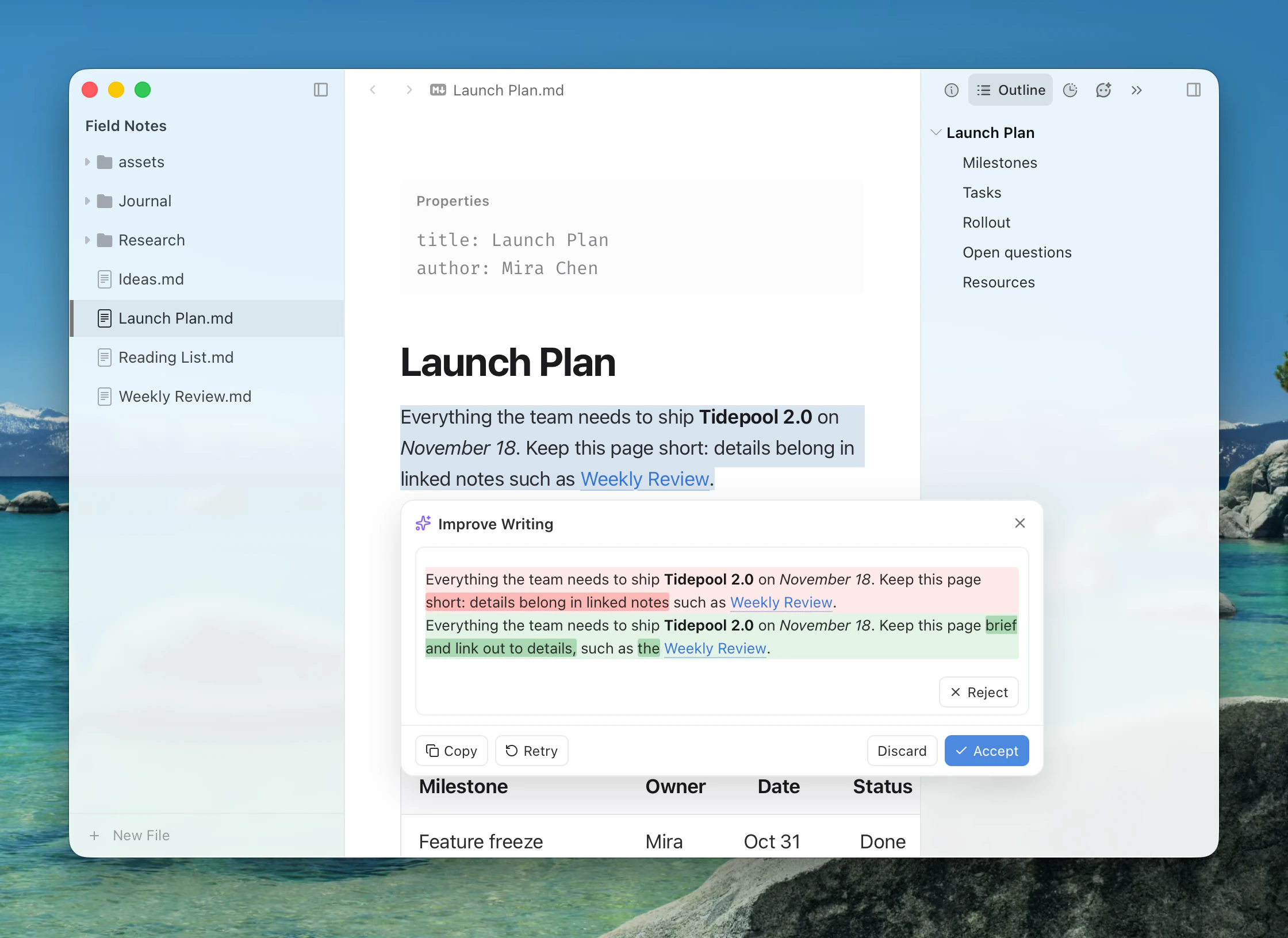
- An edit is shown block by block, all accepted to begin with. Reject any block you don't want; the main button then reads Accept 2 of 3.
- Generated text shows as a preview with Insert, and goes after the selection.
- Retry tries again, Copy copies the result, Discard closes the panel.
- Mod+Enter applies. Esc stops while it is writing, and discards afterwards. Text that had already arrived stays for review after you stop.
If the text changed while the suggestion was on screen, Typora won't apply it; copy the result instead.
Ask from the command palette
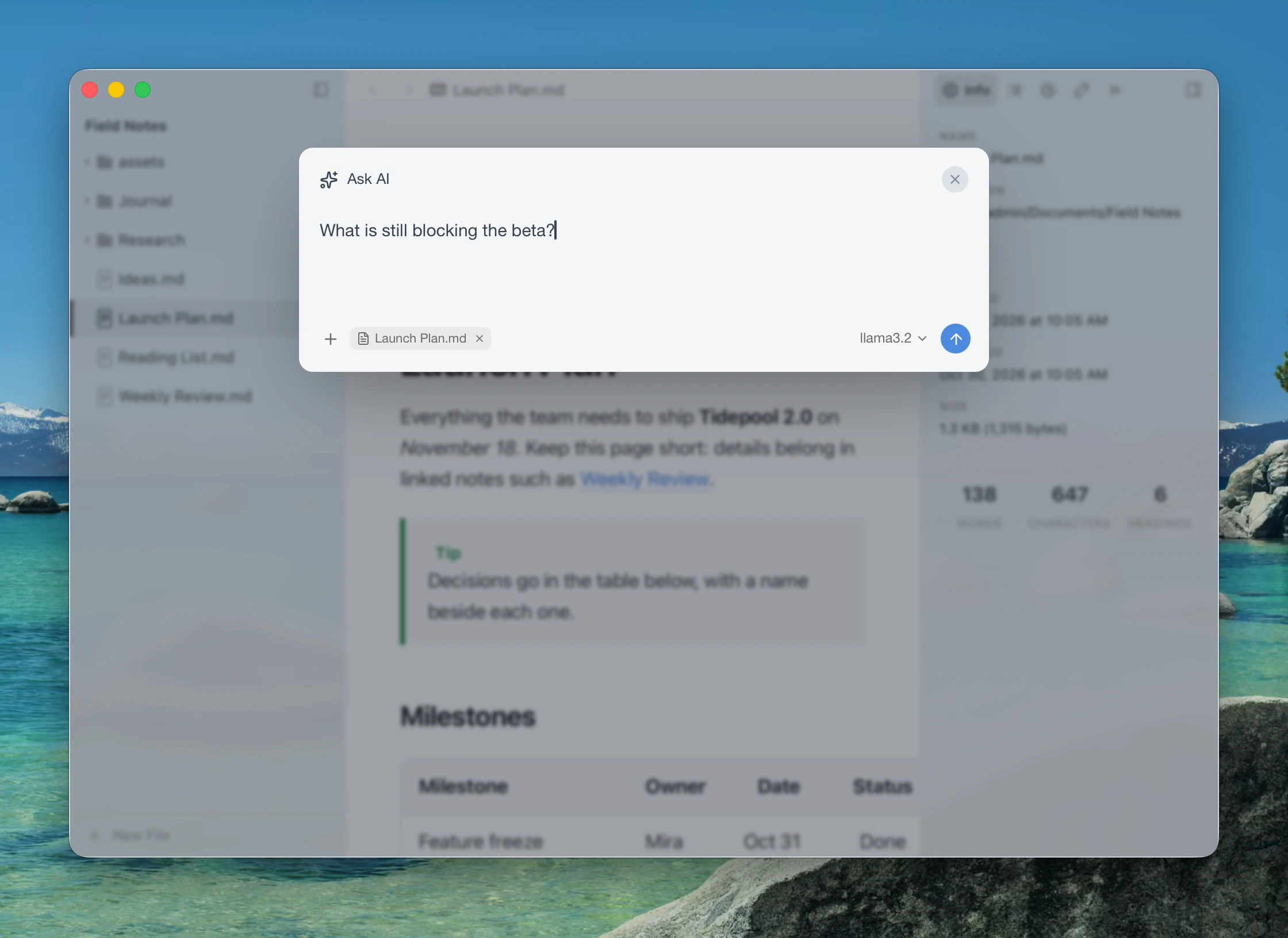
Type a question in the command palette and press Tab, or click Ask AI. A small box opens with your text, and sending it continues in the Chat tab of the current document.
Views in the detail panel
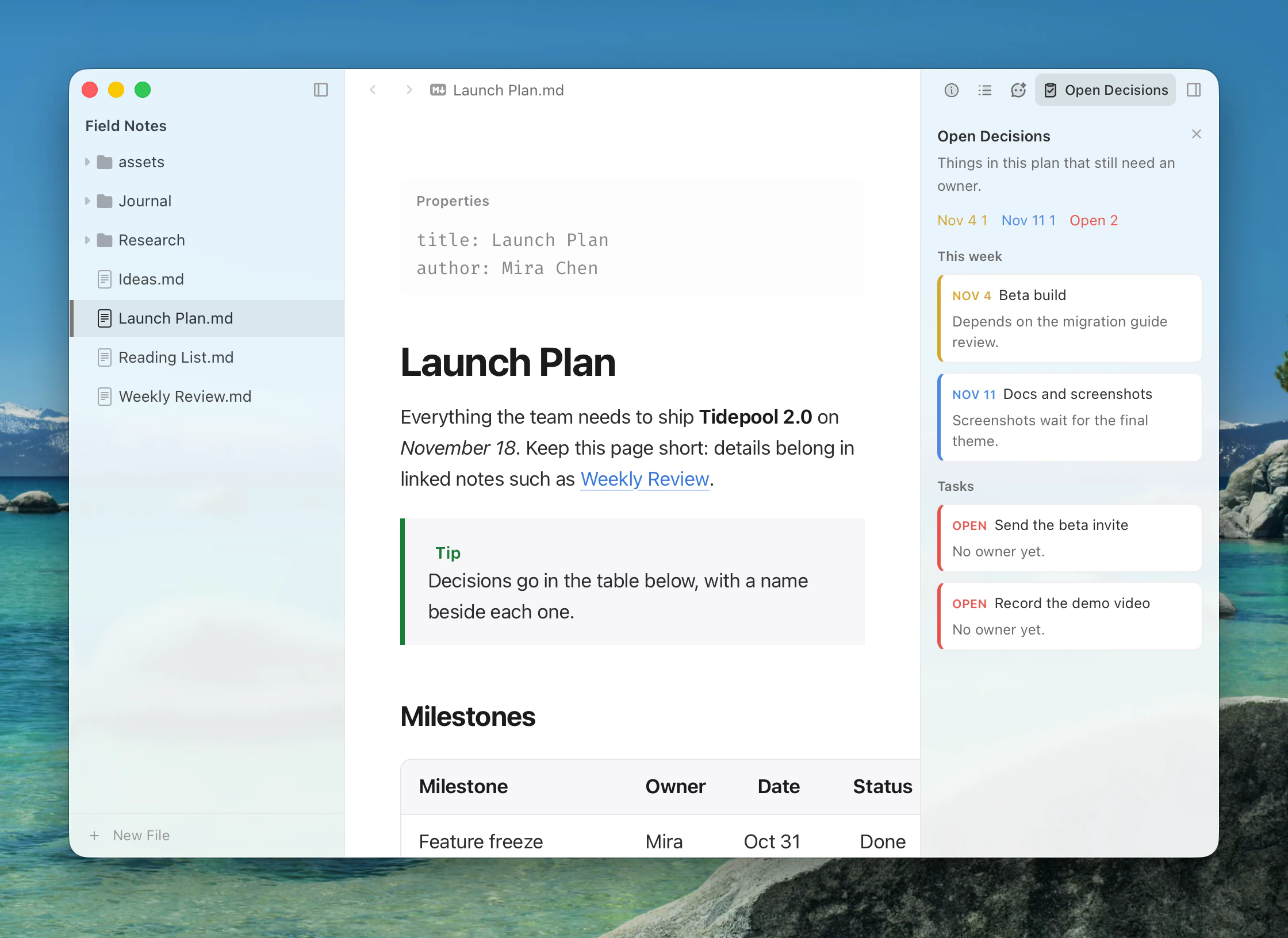
Ask the chat to find things in your document, such as list every claim that needs a citation, and it can show the answer as a view in the detail panel. Rows point at the text they are about; click one to jump there. A row can carry a suggested replacement, which Apply… sends to the normal review. Views stay with the document for 30 days.
A view that lists things from the document stays up to date as you write. Choose Keep as a Detail Panel Tab to keep it as a tab for every document. Settings ▸ View removes kept tabs.
Let the chat act in Typora
With Let the Chat Act in Typora on (the default), you can ask the chat to open documents and splits, run commands, change settings and install extensions. Anything lasting asks you first, with Deny, an allow button, and usually Allow for this conversation.
Web search
The chat can search the web, for example to fact-check a document. Set the service in Settings ▸ Intelligence ▸ Web Search:
| Search Service | How it works |
|---|---|
| Search Engines in a Web Tab (default) | Opens Google's results page in a web tab beside the document, with no key. If Google can't be reached or asks whether you are a person, it tries the next engine: Bing, or Baidu then Bing in a Chinese interface. |
| Brave Search, Tavily, Exa | Uses the service's API with your key. |
| SearXNG | Uses the instance you enter, which must have JSON output turned on. |
| Off | No web search. |
The first search asks permission once. Searches may contain text from your documents, and they go to the service you chose.
Images
To create images, add a model in Settings ▸ Intelligence ▸ Image Models (OpenAI, OpenRouter or Custom…) and turn it on. Then use Create Image in the composer's + menu or the AI menu, type /image and a description at the start of a message, or simply ask.
The result has Insert Image, Copy Image and Regenerate. Inserting follows your image settings, so it is copied to your assets folder or uploaded like any other image.
Skills
Skills are instructions the chat follows for kinds of tasks. Your own are Markdown files in ~/.config/Typora/Skills; Open Folder in Settings ▸ Intelligence ▸ Skills takes you there. Give a file name and description in its front matter. Extensions can bring skills too, and the list shows where each one comes from.
The chat picks a skill by its description; there is no command to call one. You can also ask the chat to save a workflow as a skill.
Instructions
Custom Instructions in Settings ▸ Intelligence ▸ Defaults are added to every request, such as your preferred style or language. A provider's own Custom Instructions replace them while that provider is in use.