
Appearance
Open Quickly
Open Quickly finds files, folders and headings. Press ⌘ShiftO on macOS or Ctrl+P on Windows and Linux, or choose File ▸ Open Quickly….
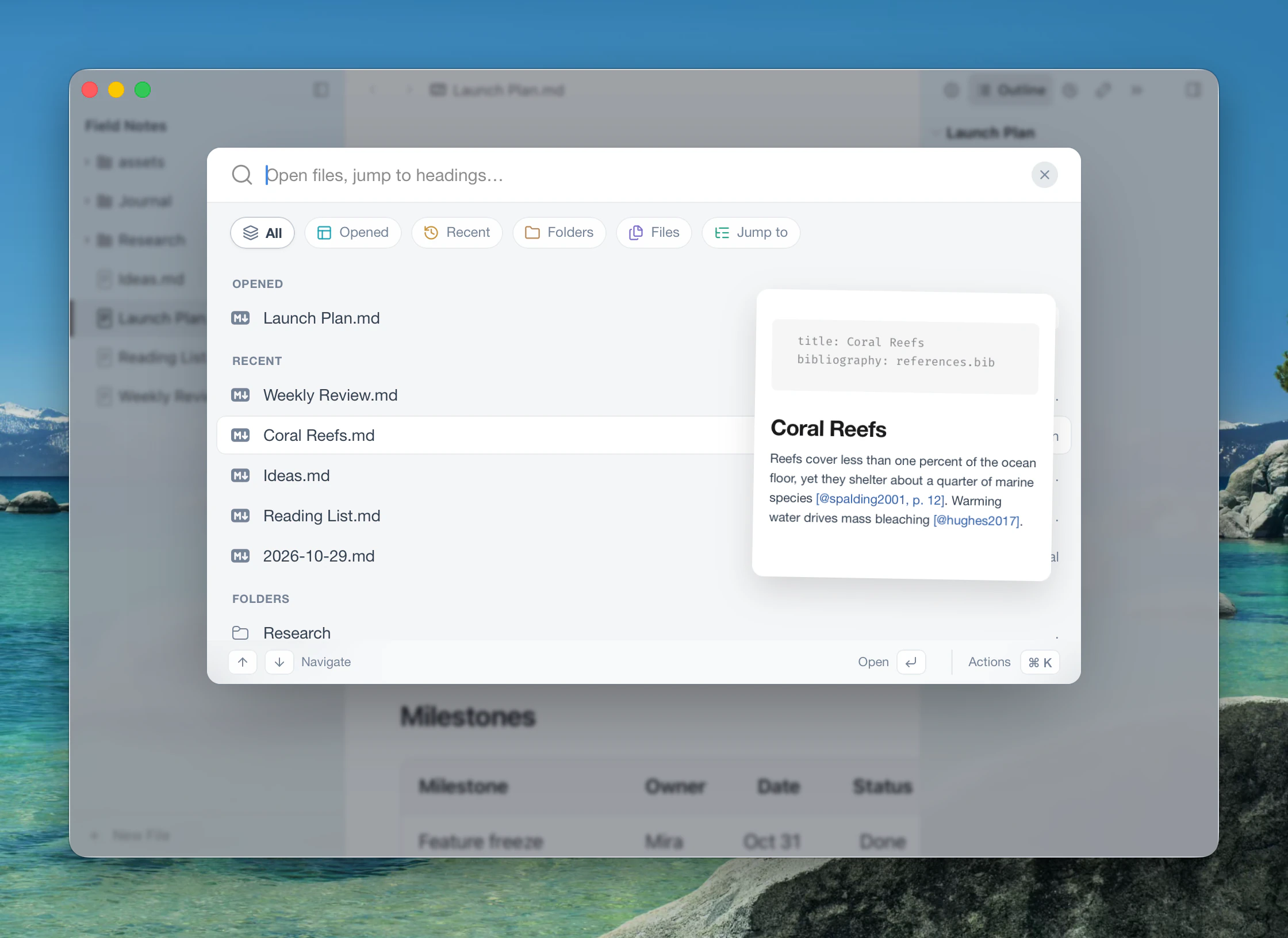
Open Quickly searches by name and folder path, and letters don't need to be next to each other. With nothing typed, it shows your open documents, recent files and folders, and the current folder's files.
The chips at the top narrow the search. Tab and Shift+Tab move between them:
| Chip | Searches |
|---|---|
| All | Everything below |
| Opened | Your open tabs |
| Recent | Recently opened files |
| Folders | Recent folders |
| Files | Files in the open folder |
| Jump to | Headings in the current document |
Under All, headings that match appear beneath the current document.
Preview
Move through the list with the arrow keys or the mouse, and a card beside it shows the item: a rendered document, text, an image, or the first few entries of a folder.
Actions
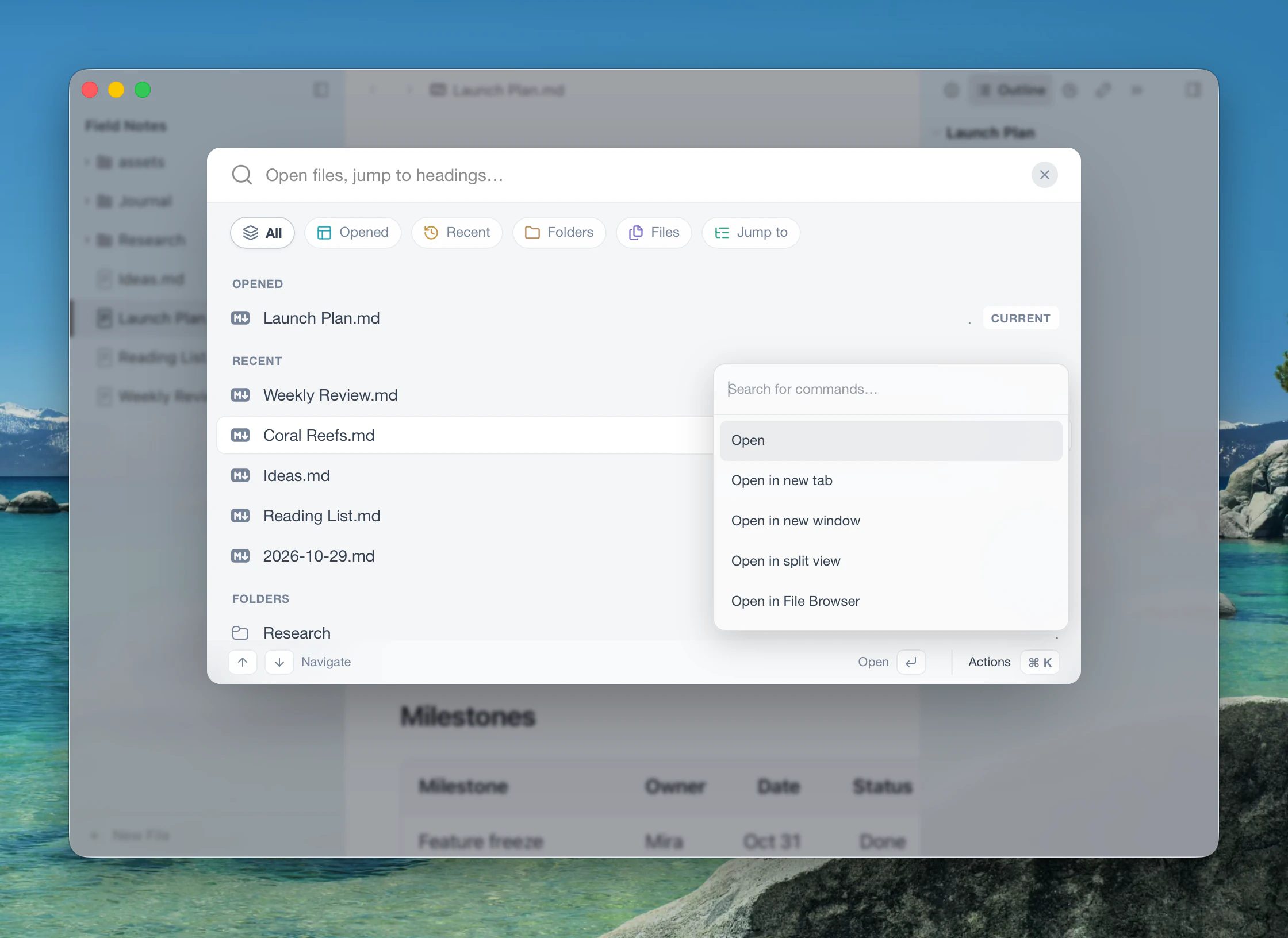
Press Mod+K, or click Actions in the footer, to see what you can do with the highlighted item. The list has its own search box. Press Mod+K or Esc to go back.
| Group | Actions |
|---|---|
| Open | Open (or Jump to heading), Open in new tab, Open in new window, Open in split view |
| Locate | Open in File Browser, Reveal in sidebar, Copy Relative Path, Copy Full Path |
| Use | Insert into document, Duplicate |
| Remove | Remove from list, Move to Trash |
Which ones appear depends on the item: a heading has only Jump to heading, and only recent items can be removed from the list.